How to Make Interactive Worksheets and Games on Canva with AI for Online Classes
I recently have been trying to create some interactive worksheets on Canva for my classes. While navigating the transition toward no-code game design has definitely been a learning curve, I am getting there. I’ve only created three so far, but I thought I would share what I have learnt so that you could try it too. The cool thing about creating your own worksheets is that you can tailor them to the lesson you are doing and it’s a great way to test if your students understand the work you are teaching.
Key Takeaways
- No-Code Game Design: Canva’s AI features allow educators to create interactive classroom activities without needing programming knowledge, making game development accessible to everyone.
- Iterative Prompting: Achieving the desired game layout and functionality often requires multiple rounds of refining prompts, especially when requesting specific visual elements or complex interactions.
- Design for Your Audience: Always consider the age and ability level of your students when developing games to ensure the difficulty is engaging rather than frustrating.
- Prioritize Functionality: Before deploying a game, thoroughly test all interactive elements to ensure they respond as intended; if an error occurs, continue to prompt the AI for adjustments.
- Utilize Existing Templates: New users can speed up their workflow by starting with free or customizable Canva game templates before attempting to build complex custom projects from scratch.

Keep user experience in mind
In working with these kinds of worksheets you need to keep two very important things in mind:
- TEST your worksheets and make sure that they work. If they don’t work or come out the way you want, you have to keep prompting the AI in the chat to change things.
- Keep the abilities of your students in mind. Will the worksheets be too difficult or too easy? This is another area where you can modify things.
Give clear instructions
Go through the lesson and make a note of the vocabulary that you want to teach. Then figure out what you can do with the vocabulary to make it interesting. What sentence structure do you want to teach? For me, it was all about the animals and the actions. I had to preteach both the animals, then the actions and then put them together.
Keep prompting until you get the desired result
Remember: this is AI. It’s a robot. I have found that particularly with regards to images, they are not that great. With ESL you really need to give clear images to make sure your student understands.
How to create an interactive worksheet on Canva:
Creating engaging classroom resources is easier than ever thanks to the latest Canva AI features. This workflow allows you to build functional activities with no coding knowledge required, serving as a much faster and more accessible alternative to complex platforms like GDevelop. To get started, you can also search for free game templates or customizable templates within the Canva interface to speed up your design process.
If you are on the standard free plan, some elements will carry a crown icon; eligible teachers can apply for Canva for Education at no cost, which is worth sorting out before you build a whole library of games.
- Go to https://www.canva.com/ai/ to begin.
- Type a specific prompt describing the game or worksheet you want to create. Providing clear, detailed instructions will yield the best results. Before you press enter, ensure you click on the CODE option located under the text box to generate the necessary elements.
- Review the output and continue prompting until you have a result that works perfectly for your students.
My examples:
Lesson 1: Chinese New Year: Zodiac Animals (https://abridgeacademy.com/a1-zodiac-animals/)
Interactive Worksheet prompt: “Create a lesson with a series of interactive worksheets. The vocabulary is the chinese zodiac animals: rat, snake, rabbit, tiger, ox, dragon, dog, monkey, horse, goat, pig, rooster,. Then there is this action vocabulary: run, hop, jump, climb, fly, swim. Then do a drag and drop fill in the sentence: A rabbit can hop. A rooster can fly. A horse can run. A tiger can swim. A monkey can climb”
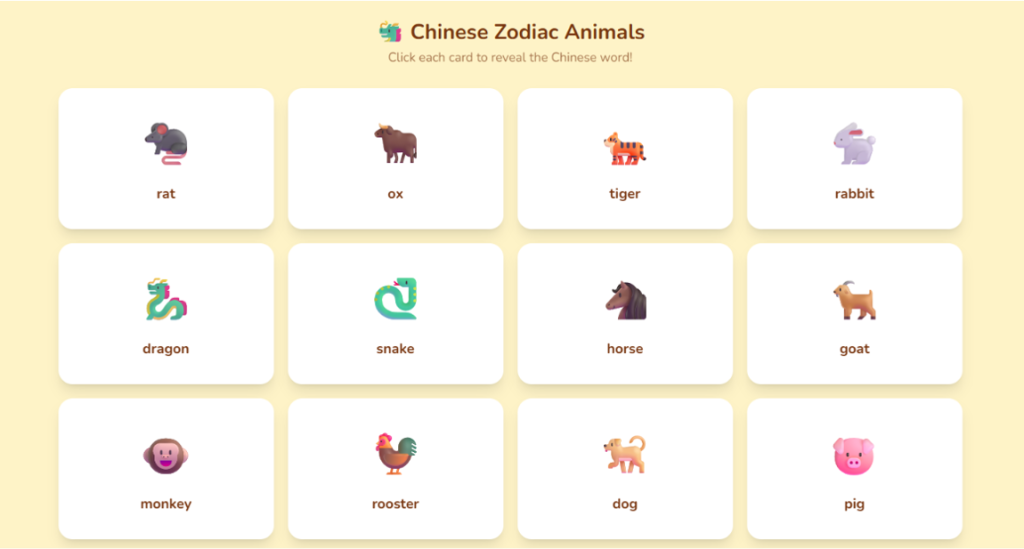
First prompt: “Can you please change the “jump” image to someone jumping”
Second prompt: “I don’t want a cartwheel. I want an image of someone jumping.”
Still not the best result, but OK.
Final result: https://heathergames.my.canva.site/
Lesson 2: The Great Race: (https://abridgeacademy.com/reading-the-great-race/)
Interactive Worksheet Prompt: Create two interactive worksheets: 1. A board game with moving counters for four people. This tests ordinal numbers 1-12 and uses these animals in this order: rat, ox, tiger, rabbit, dragon, snake, horse, goat, monkey, rooster, dog, pig. 2. A sorting game with the animals where they move them to two areas: It can swim (ox, tiger, rabbit, dragon, horse, dog, pig) and it can’t swim (rat, cat, goat, monkey, rooster)
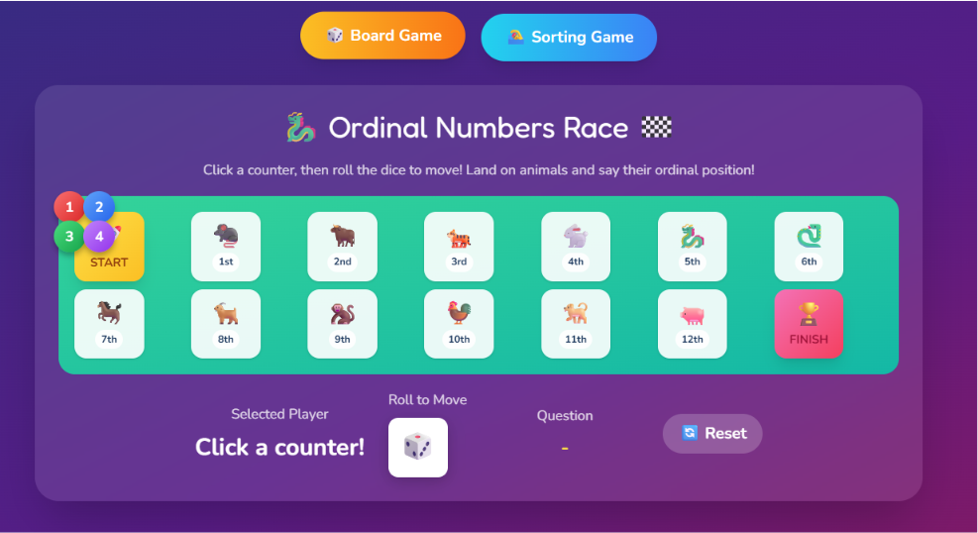
Result: https://heathergames.my.canva.site/chinesezodiacrace
I didn’t have to prompt this one further, but in retrospect, the ordinal numbers were a bit hard for the kids.
Lesson 3: Celebrations around the world: (https://abridgeacademy.com/a2-lunar-new-year-celebrations-around-the-world/)
Interactive Worksheet Prompt: Create interactive worksheets for Lunar New Year around the world: 1. Teach the flags of the following countries: China, Vietnam, South Korea, Malaysia, the Philippines, Mongolia. 2. Matching interactive game: match the flags to the countries. 3. Teach the vocabulary of each country: China: red envelopes, fireworks, dumplings, dragon dance. Vietnam: bamboo poles, candied fruits, Korea: board games, fly kites, fire 4. Match these to each country in an interactive game.
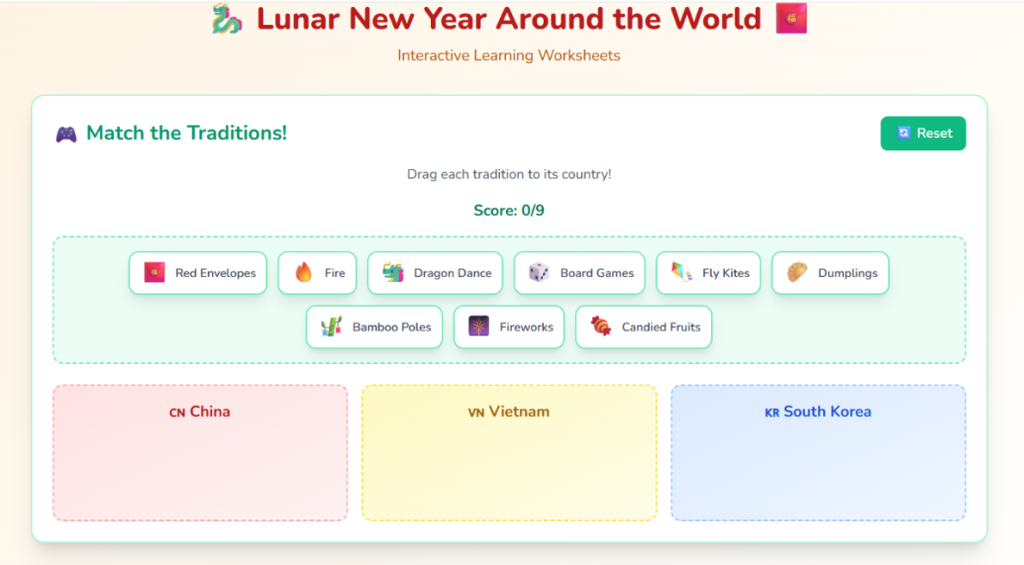
Further prompts:
Page 2 – no images of flags – please put images of flags.
That’s fine for the first page but please on page 2 “Match flags” we need the images to match to the countries
Result: https://heathergames.my.canva.site/lunarnewyearcountries
I stopped it there because when I prompted it further, I either lost the flags or I lost the drag and drop ability. In the end I settled for rather having accurate flags, and then people could just draw a line.
Conclusion
As you can see, it’s a work in progress, but I think it’s cool and I will definitely use it in the future. If you start building up a library of these games, keep them easy to find before class with the cleanup routine in Organizing Canva for Online Teachers.
What do you think, and what has your experience been with Canva AI?
Frequently Asked Questions
Do I need to be a coding expert to create these games?
No, the beauty of using Canva for game design is that it utilizes no-code AI tools. By using clear, descriptive prompts, you can generate functional interactive elements without writing a single line of code.
What should I do if the AI-generated image isn’t accurate?
If the AI produces an image that doesn’t meet your needs, do not hesitate to refine your prompt. For better visual clarity with students, you can specifically request animated styles or provide more detailed descriptions of the action you want to see.
How do I share the completed game with my students?
Once your interactive worksheet is finished and you are satisfied with its functionality, you can easily share it by using the “publish website” feature in Canva. This generates a live, shareable link that your students can use to access the activity directly.
Can I use these games for any subject matter?
Absolutely, these tools are highly adaptable to any lesson plan. Whether you are teaching vocabulary, geography, or logical sequencing, you can tailor your prompts to create activities like trivia, matching games, or choose-your-own-adventure stories.


3 Comments