Get Canva Free for Teachers as an Online Educator
Canva is a very versatile platform. There is so much that you can use it for. I use it it to supplement my lessons in the form of flashcards and online games. I use the pen on Canva during lessons for the end of unit quiz. It’s fantastic for giving different sizes of graphics for social media. There are loads of photos, videos and graphics. I’ve been paying for this service for many years now, but I recently found out that Canva Education supports teachers with a free membership. I had to find out if I could do it as an online teacher. It turns out that I could – but it definitely wasn’t easy and you need to follow their guidelines.
If you are looking for Canva free for teachers, you may qualify for Canva for Education at no cost. This version of Canva education gives eligible educators, especially those in k-12 education, access to a powerful visual suite without another monthly subscription hanging over your head. By unlocking canva education, you gain premium design tools and free teaching resources to build engaging lessons. The catch is that approval depends on current rules and your teaching role.
Here is how to check your eligibility, apply the right way, and still make great materials if you are not approved.
Key Takeaways
- Eligible K-12 educators can access canva education at no cost by verifying their teaching role and school credentials within k-12 education on Canva’s official website.
- If your application isn’t approved, the standard Canva Free plan still provides a robust set of design tools for creating lesson materials.
- Setting up an organized folder structure and reusable master templates helps online educators save time when they build lesson plans during weekly prep.
- Always keep student data out of public designs to ensure compliance with privacy regulations like ferpa and coppa.
- Leverage integrated tools within your workspace, such as the background remover and presentation formats, to streamline your virtual teaching routine.
How to Get Canva Free for Teachers Through Canva Education
Canva Free and Canva education aren’t quite the same thing. The regular free account gives you core design tools and plenty of templates. Canva education is a separate offering for verified K-12 education professionals, students, schools, and school districts.
Canva’s official Education page is the best starting point because features and account rules can change. Use your real professional details, and use an official school email if you have one. It makes the process much less murky.
Teaching online doesn’t automatically mean you qualify. Canva education is generally built for teachers working with primary and secondary students through an eligible educational institution or organization.
Canva may look at your teaching status, whether you work at an approved school, and whether you have a role it can verify for canva education access. A school-employed online teacher has a different situation than an independent tutor, adult education instructor, or private ESL teacher.
Before you apply, gather what you may need:
- An official school email address or education email domain
- A staff ID, employment letter, or teaching license
- A link to your school’s website or staff directory
Read Canva’s current Education eligibility guidelines before you start. They spell out which roles and organizations qualify. It saves the frustration of filling out a form with your fingers crossed.
Apply for Canva education step by step
Once you have your details ready, the verification process for canva education is pretty straightforward.
- Go to Canva’s official Education page and choose the educator option.
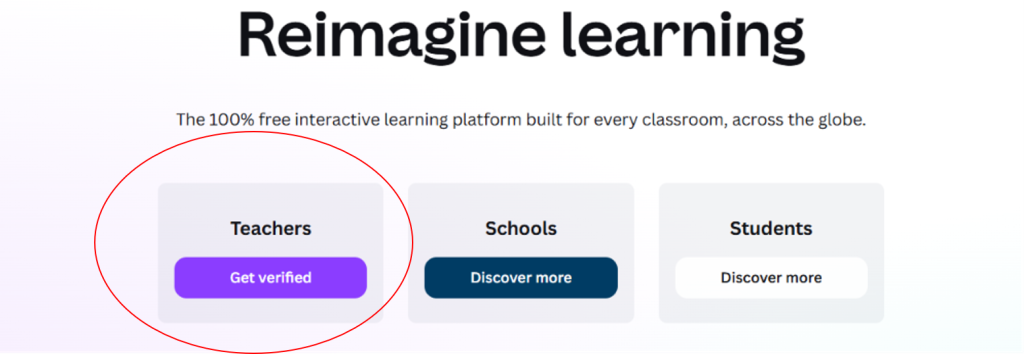
2. Sign in to your existing Canva account, or create one with your school email.
3. Enter your name, teaching role, and school information carefully.
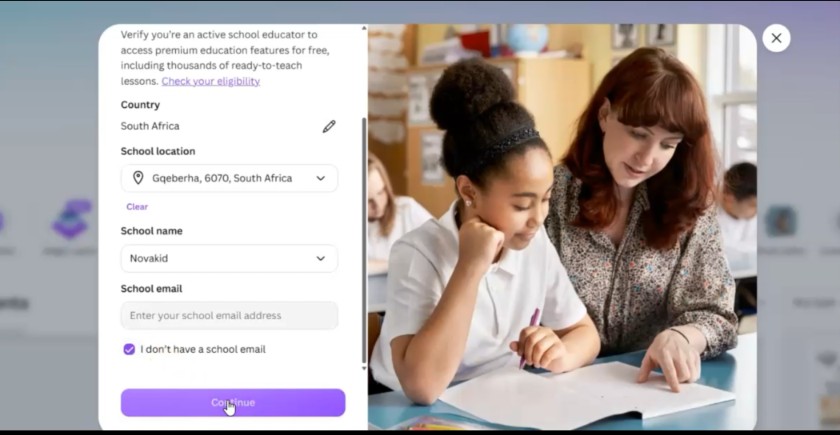
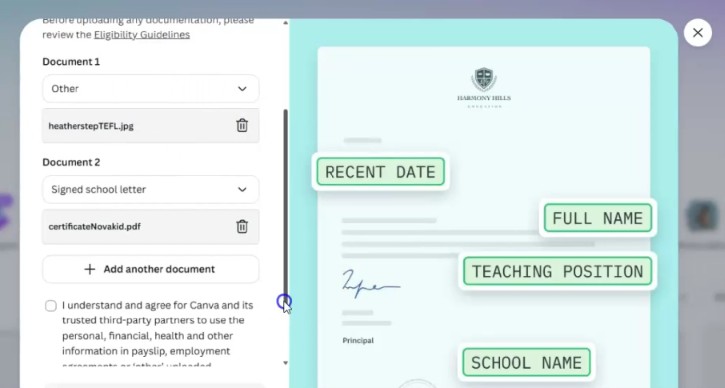
4. Upload any proof Canva asks for during the verification process. I submitted my TEFL certificate and a certificate of service from Novakid to prove that I worked for them. In retrospect I should also have submitted my website as well. You can see on the screenshot the kind of letter that they want from you school.
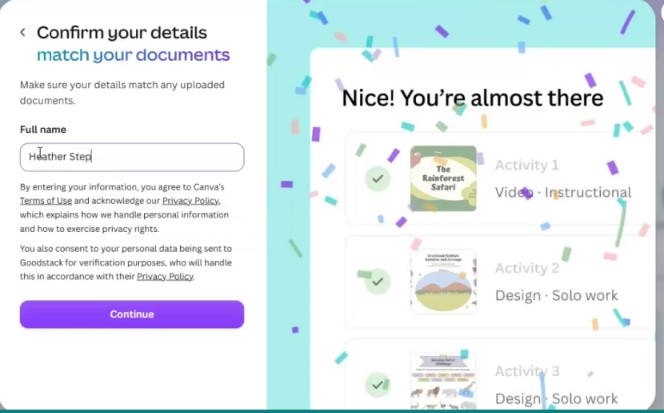
5. Enter your name and make sure it matches up with your documents.
6. Submit your application and wait for updates.
Some educators may be approved quickly. Others may need a manual review or a request for more information. Use the same school email throughout the process when possible, since bouncing between accounts can create a tiny admin mess.
Skip coupon sites and free Pro offers. The legitimate route for canva education starts on Canva’s own website.
What to Do If Your Application Isn’t Approved
A rejection isn’t a verdict on your teaching. It often means Canva couldn’t verify the information, your role doesn’t fit the k-12 education guidelines, or the documents weren’t clear enough.
Read the message you receive, then correct anything missing or outdated. If the decision seems wrong, contact Canva through its official support options and provide accurate information for the verification process. Don’t submit fake documents or claim a teaching status you don’t have. That shortcut can turn a simple application problem into an account problem.
What happened with me is that my initial application was rejected based on the TEFL certificate and the certificate of service from CEO Max. They couldn’t verify me and I also I didn’t have a school email address. I decided to try again, this time with my website (englishsteps.online) and I also told them that I have an email linked to that. I also confirmed that the previous documentation was legit. However, it was my website that helped prove that I was a teacher and I think that, together with the email, helped me.
This just shows that having a website really helps. If you are keen to build your own website, I’ve got a course that shows you how to make a WordPress blog. It’s called Start a WordPress Blog Now. This isn’t just going to help you get students. It also helps showcase your authority as a teacher for moments like this. It’s also helped me get jobs before.
Use Canva Free for online lessons and teaching materials
The standard free plan is still a helpful little workhorse. You can make engaging lesson plans, worksheets, simple slides, social graphics, whiteboard-style activities, certificates, classroom posters, and video thumbnails using the intuitive drag-and-drop editor.
Search education templates using terms like “lesson presentation,” “worksheet,” “classroom,” “vocabulary,” or “flashcards.” Before you fall in love with education templates, check their elements. Premium features usually show a crown icon. Swap those premium features for free photos, fonts, graphics, or layouts before editing.
For many tutors, canva free for teachers is less about having every shiny option and more about having a few reusable lesson plans that work every week, supplemented by the standard tools found in canva education when full access is granted.
Compare Canva Education with the regular free plan
The practical differences look like this:
| Account type | What you can expect |
|---|---|
| Canva Free | Core design tools, free templates and assets, basic storage, and standard sharing options |
| Canva Education | Extra education content, classroom collaboration, assignments, and broader access for approved users |
Exact access can vary by account and Canva policy. Canva’s Education Help Center overview has the current details.
If you only need clean slides, printable handouts, and a few vocabulary games, the regular free plan may be plenty. Don’t pay for Pro out of panic. Try your lesson routine first.
Set Up Canva for Faster, Safer Online Teaching
Once you have a Canva Education account, build a system before your designs breed like rabbits. Create folders for each class, level, or subject, especially when managing resources across k-12 education. Save one reusable lesson presentation within the visual suite, then make a copy before changing it.
Export PDFs for handouts and presentation files when needed. Test the file on the same device and platform you use for Zoom, Google Meet, or your interactive learning platform. A beautiful slide isn’t much help if the audio won’t play or the text vanishes on a Chromebook. You can also leverage smooth lms integrations to push assignments directly to Google Classroom, and you can connect lms integrations with Microsoft Teams to make classroom collaboration much easier for both teachers and primary and secondary students. School districts often evaluate how well these tools fit their broader digital ecosystem.
Keep student names, grades, email addresses, and photos out of public designs to comply with ferpa and coppa regulations. Also check that images, videos, and fonts suit your learners and your school rules. School districts often have strict guidelines regarding ferpa and coppa, so keeping student data out of your materials is essential.
If you’re looking for more information on getting organized in Canva, check out this post. Organizing Canva for Online Teachers: A Cleanup Routine
Build reusable templates for ESL, tutoring, and virtual classes
A small template library saves more time than a giant folder of random designs. Start with a warm-up slide, vocabulary cards, speaking prompts, grammar practice, exit tickets, homework instructions, and feedback certificates. Using the intuitive drag-and-drop editor inside Canva Education makes creating these lesson plans fast and simple.
Use the same two or three colors and clear, easy-to-read fonts. Students recognize the pattern faster, especially younger learners and English language learners. Keep one blank master template, then duplicate it for each class or student.
Your lesson plans can become slides for live lessons, PDFs for printed handouts, or images for a learning platform. Enhance your lesson plans with magic write for text generation, the background remover for clean graphics, the photo editor for quick image touch-ups, the video editor for multimedia clips, and digital whiteboards for interactive brainstorming. One idea, several uses. That is a happy little time saver.
Avoid the mistakes that make free Canva harder to use
The usual trouble spots are easy to miss. You might choose premium features by accident, export the wrong format, or share an editable link when a view-only link is safer.
Check for watermarks before class, ensuring you take full advantage of your verified Canva Education status. Download backup copies of important lesson plans. Keep folders tidy enough that you can find tomorrow’s activity without opening fourteen files called “final final new,” relying on robust design tools to organize your Canva Education workspace.
Don’t assume every Canva Education feature appears on every account. Review Canva Education current terms and eligibility rules now and then, because access to premium features can change within Canva Education environments.
Frequently Asked Questions
Who qualifies for Canva for Education?
Canva for Education is generally designed for verified K-12 teachers, students, schools, and school districts. Eligibility depends on your teaching role and whether you work at an approved educational institution, meaning independent tutors or adult educators may not automatically qualify.
What should I do if my application is denied?
If your application is rejected, carefully review the feedback from Canva Education to see if information was missing or unverified. You can reapply with correct documentation or contact support, but you should never submit fake credentials or claim an ineligible teaching status. Produce more evidence and show that you are a teacher. See my video above for how I did it. (I used my own website showing that I was a teacher)
Can I still use Canva effectively if I am not approved?
Yes, the standard Canva Free plan offers plenty of core features, templates, and design tools. By avoiding premium elements marked with a crown icon, you can easily create clean slides, worksheets, and handouts without paying for a subscription.
How can I keep my online classroom secure while using Canva?
To comply with privacy standards like ferpa and coppa, you should avoid including real student names, grades, or photos in your public designs. Always check your guidelines regarding student data and use view-only sharing links when appropriate.
Build Your Teaching Library One Lesson at a Time
Start by checking your role, gathering honest proof, and applying through the portal. If you aren’t eligible, Canva Free for teachers can still cover a surprising amount of everyday lesson prep using basic platform options.
The real win isn’t collecting endless templates. It is building a small set of reusable materials and free teaching resources that makes your lesson plans clearer, calmer, and easier to prepare by taking advantage of standard Canva Education templates and the broader Canva Education ecosystem.
3 Comments