Best Laptops for Online Teachers Who Need Fewer Tech Headaches
All we actually want from our laptop is to deliver a stress free day. Best laptops for online teachers deliver a good processor, a decent amount of RAM to multitask different programs and a healthy storage (SSD) so that we can transition seamlessly from one platform to another. An online lesson can ask a lot from one little laptop. You’re on a video call, sharing your screen, opening a digital whiteboard, juggling browser tabs, saving worksheets, and hoping the classroom app doesn’t freeze right when a student finally gets the answer. That is why our biggest investment is about taking away the tech problems and helping us sail through the day with at least that sorted.
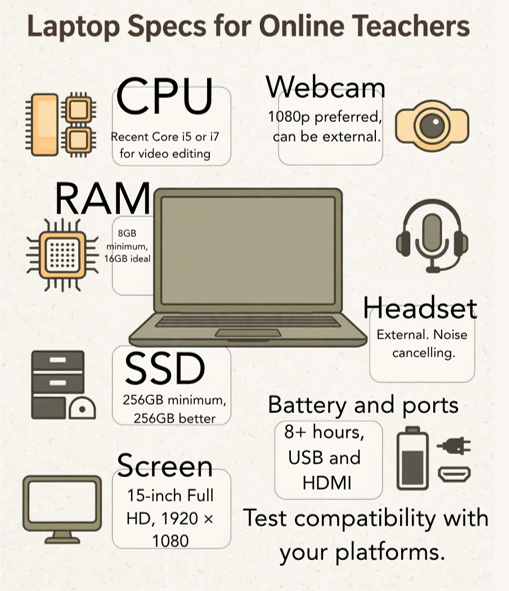
The best laptops for online teachers aren’t always the most expensive ones. They’re the ones that stay calm through a busy day of online teaching. A sensible budget, the right specs, and a few honest checks can save you from lag, crashes, fuzzy video, and that awful spinning wheel.
Let’s find the laptop that fits your actual teaching life.
Key Takeaways
- A recent Core i5 or Ryzen 5, 8GB of RAM at minimum, and a 256GB SSD will handle most online teaching tasks; 16GB of RAM and a 512GB SSD are more comfortable for regular multitasking.
- Check your employer’s platform and software requirements before buying, especially if you’re considering a Chromebook, Chromebook Plus, or MacBook.
- Prioritize a clear webcam, reliable microphone, strong Wi-Fi, comfortable keyboard, useful ports, and battery life—not just processor speed or a flashy design.
- Mid-range laptops such as the Lenovo IdeaPad Flex 5i often offer the best balance of performance, flexibility, and price for everyday teaching.
- Test your webcam, microphone, classroom apps, browser tabs, and screen sharing before your first live lesson, and keep a backup plan for internet or equipment problems.

Top laptop picks for online teachers at every budget
Laptop prices change often, and the same model can have different processors, RAM, ports, and webcams. Always read the full configuration before you buy. The name on the lid is only half the story.
Best budget laptops under $500 for new or part-time teachers
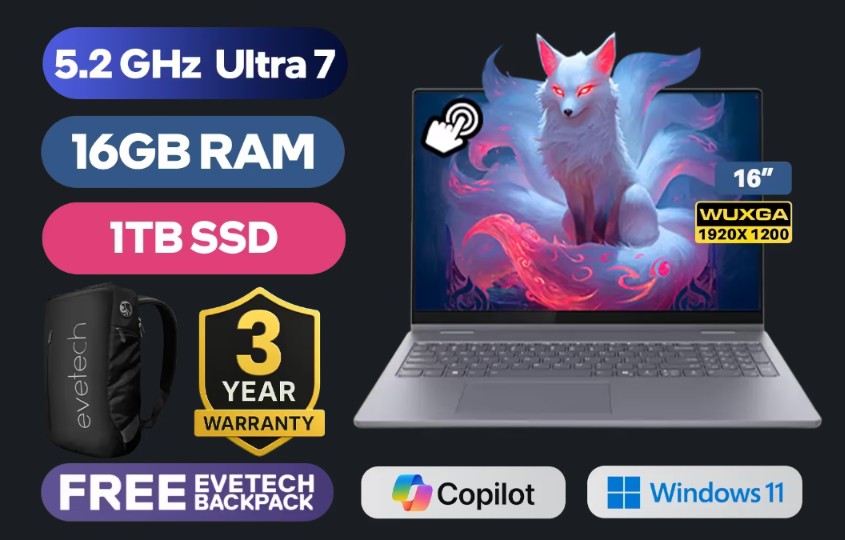
If you’re teaching a few classes each week, an Acer Aspire 5, Lenovo IdeaPad Slim 3, or Lenovo IdeaPad Flex 5i can be a good starting point. The Flex 5i’s price depends heavily on its configuration and sale price. Look for at least 8GB of RAM and a 256GB SSD.
Examples shown: Amazon (USA) and Evetech (South Africa)
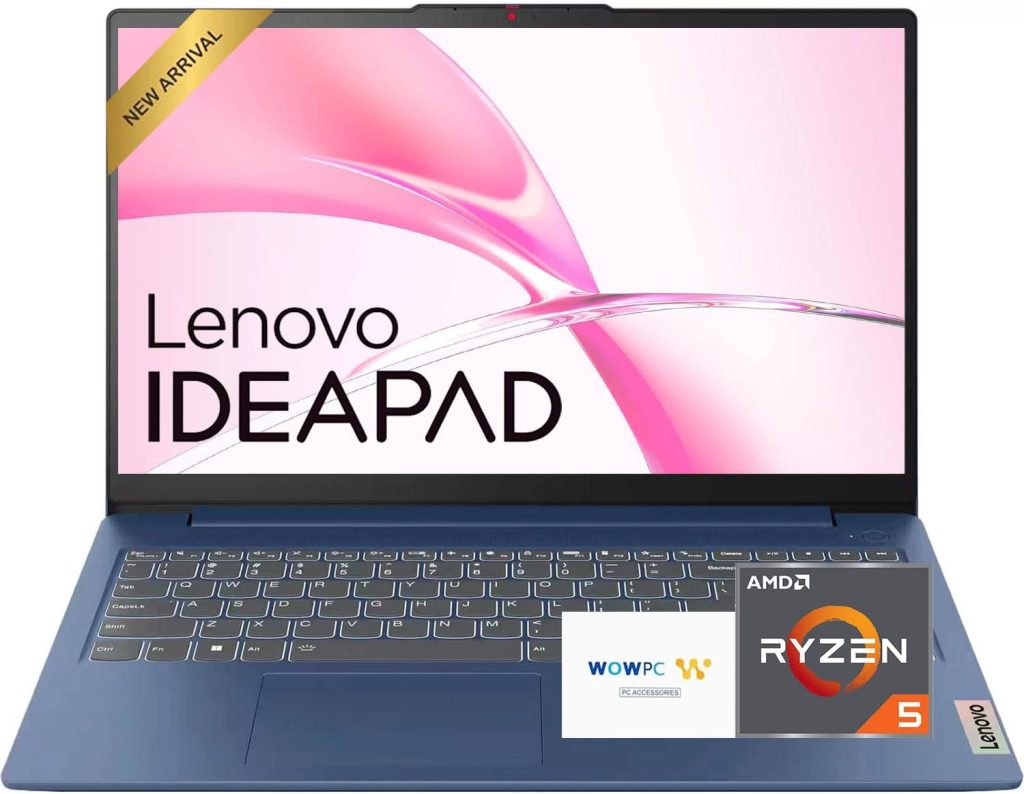
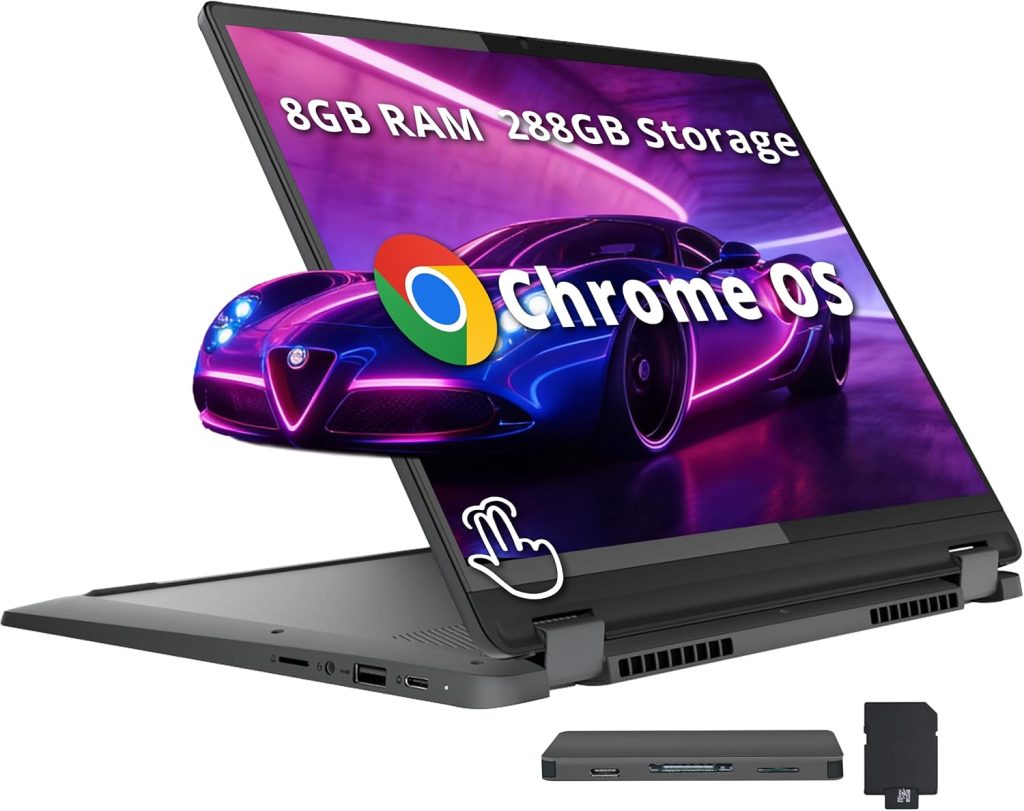
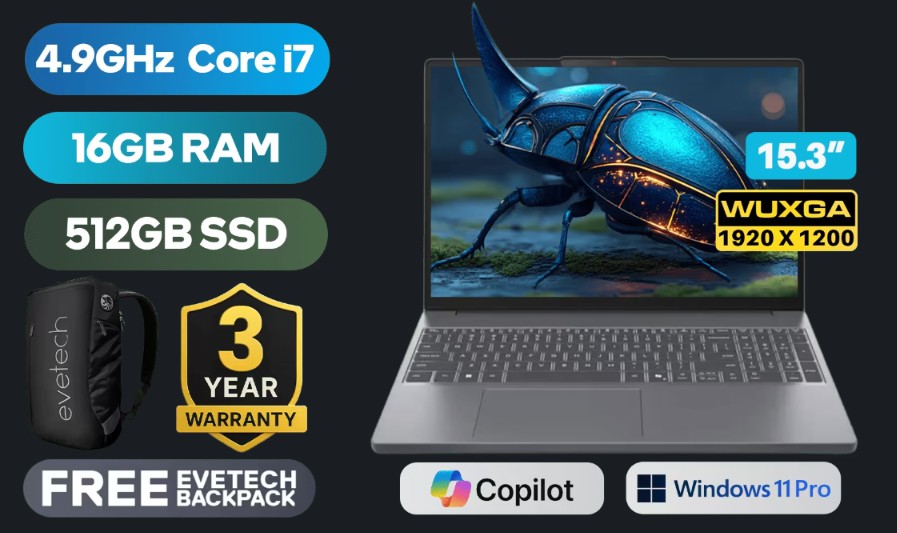
At this price, you may give up screen brightness, webcam quality, battery life, or a sturdy metal build. That doesn’t make the laptop useless. It simply means you may want a headset and an external webcam later.
A refurbished business laptop can also be a smart buy. Older Lenovo ThinkPads, Dell Latitudes, and HP EliteBooks often have better keyboards and stronger processors than brand-new bargain machines.
Be cautious with cheap Chromebooks. A Chromebook Plus is a stronger choice for browser-based classrooms, but even a Chromebook Plus may not run Windows-only software required by your employer. Check first, then check again. A low price isn’t much comfort when your required app says no.
Best mid-range laptops from $500 to $800 for everyday online teaching
For many teachers, this is the sweet spot. A Lenovo IdeaPad Slim 5, Acer Aspire 5, ASUS Vivobook 15, or HP Pavilion with a current Intel Core i5 or AMD Ryzen 5 gives you room to breathe.
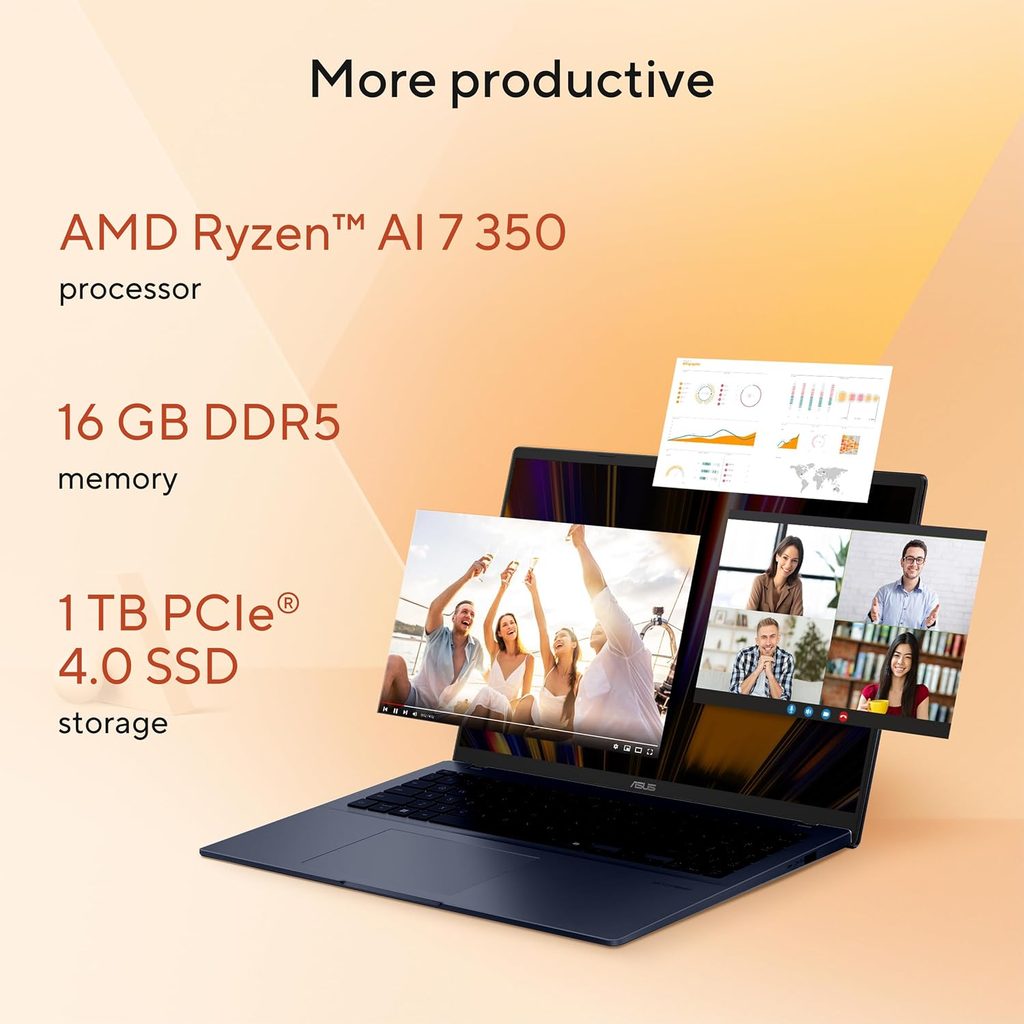
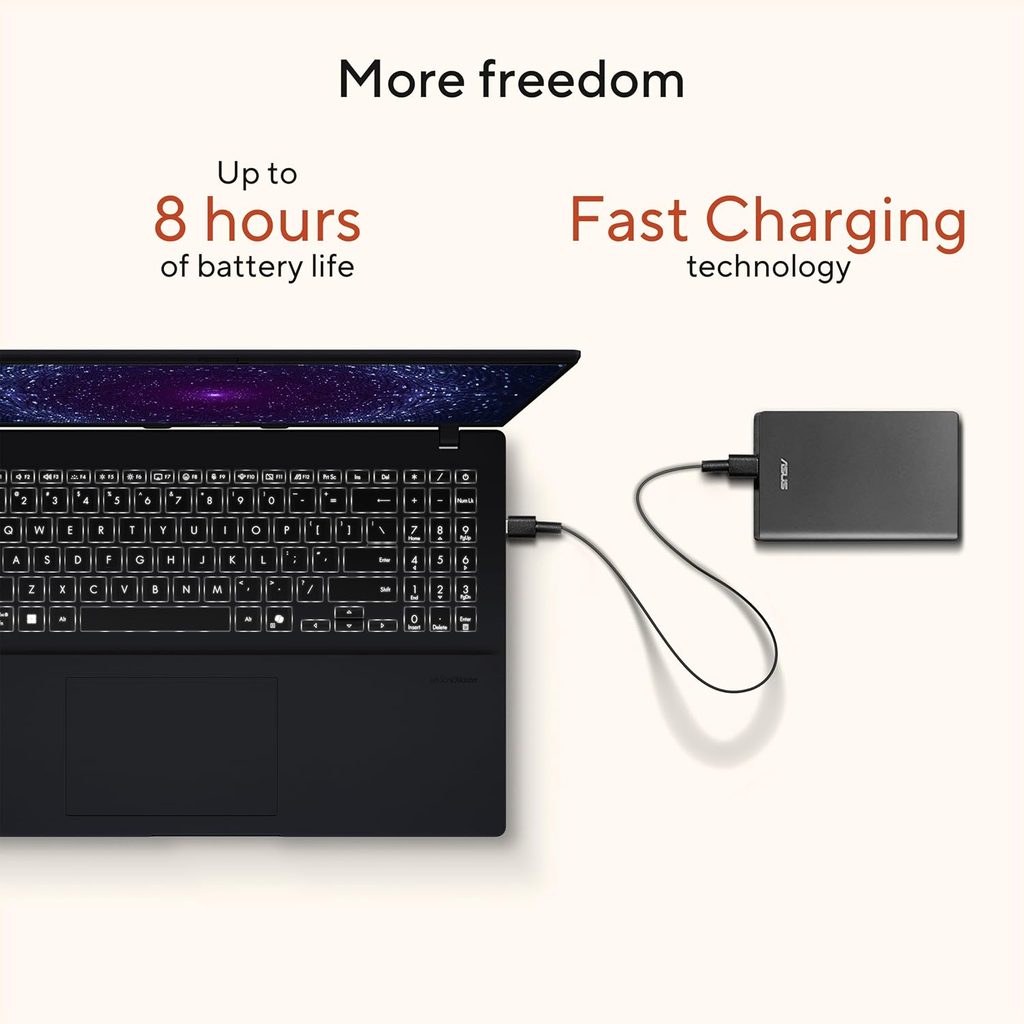
A Lenovo IdeaPad Flex 5i may justify spending more when it includes 16GB of RAM and a 512GB SSD. Its flexible design can also help when you switch between video calls, notes, and lesson materials.
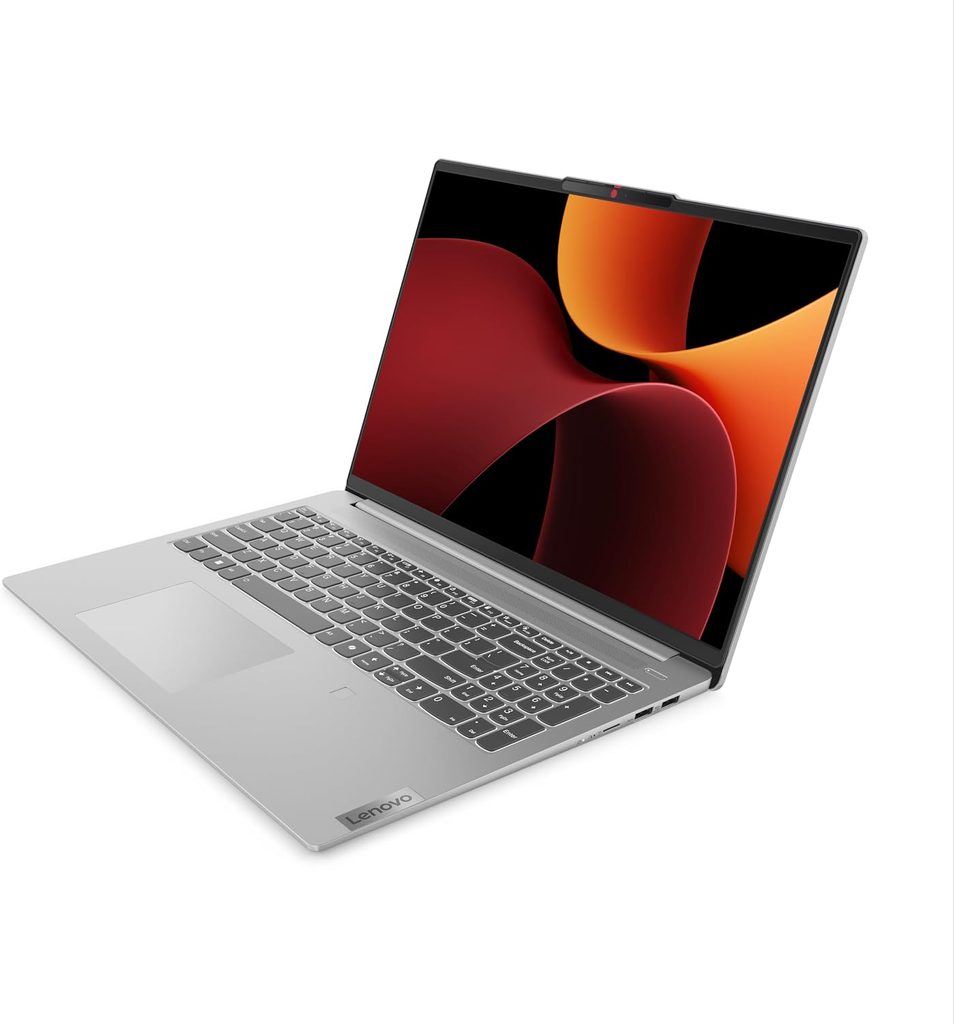
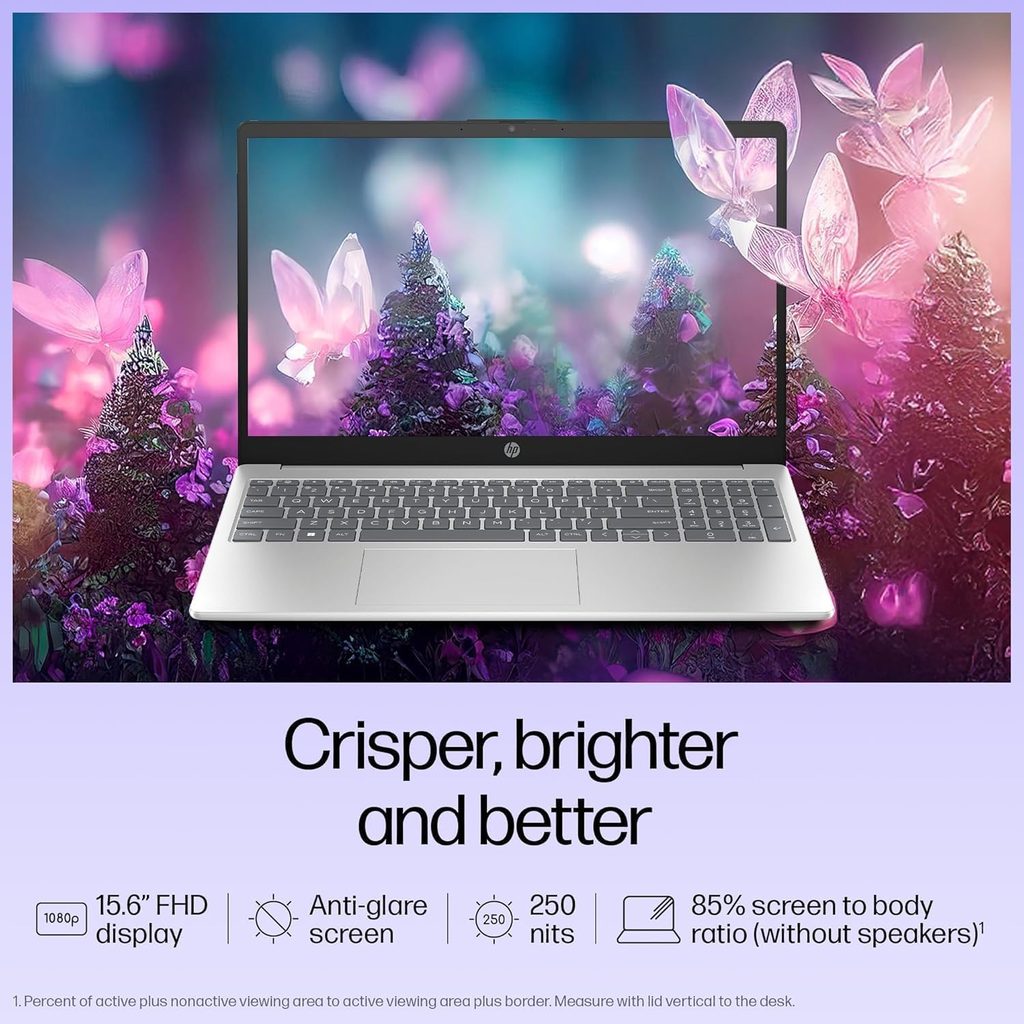
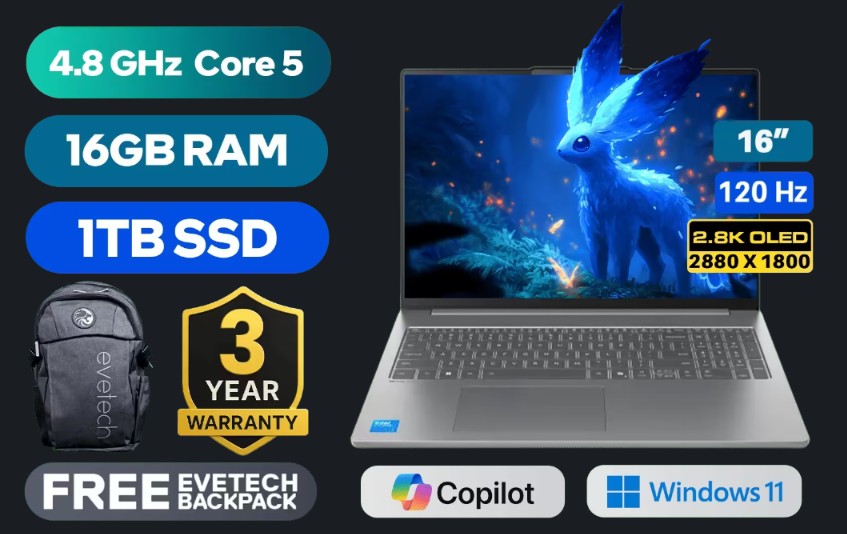
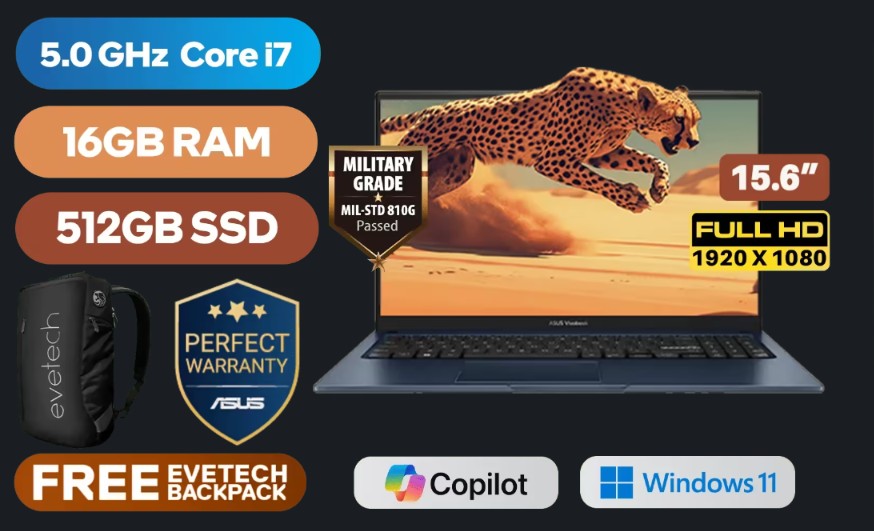
Aim for 16GB of RAM if you can find it, plus a 512GB SSD. You can run Zoom, lesson slides, Google Drive, several tabs, and a digital reward system without asking your laptop to perform circus tricks.
This range often brings a brighter Full HD display and stronger unplugged performance. If you teach several days each week, spending a little more here usually feels better than replacing a struggling budget laptop a year later. Dell’s own teacher laptop guidance also points to an i5-level processor and 8GB or more of memory for video calls and multitasking.
Best premium laptops over $800 for heavy multitasking
Premium models make sense if you record lessons, edit video, use virtual backgrounds, build courses, or teach long days with several apps open. The MacBook Air M3 is light, quiet, and strong for everyday teaching. The Asus Zenbook 14 OLED, Lenovo ThinkPad E and T series, HP Envy models, and Dell Inspiron or XPS laptops are also solid options in the right configuration.
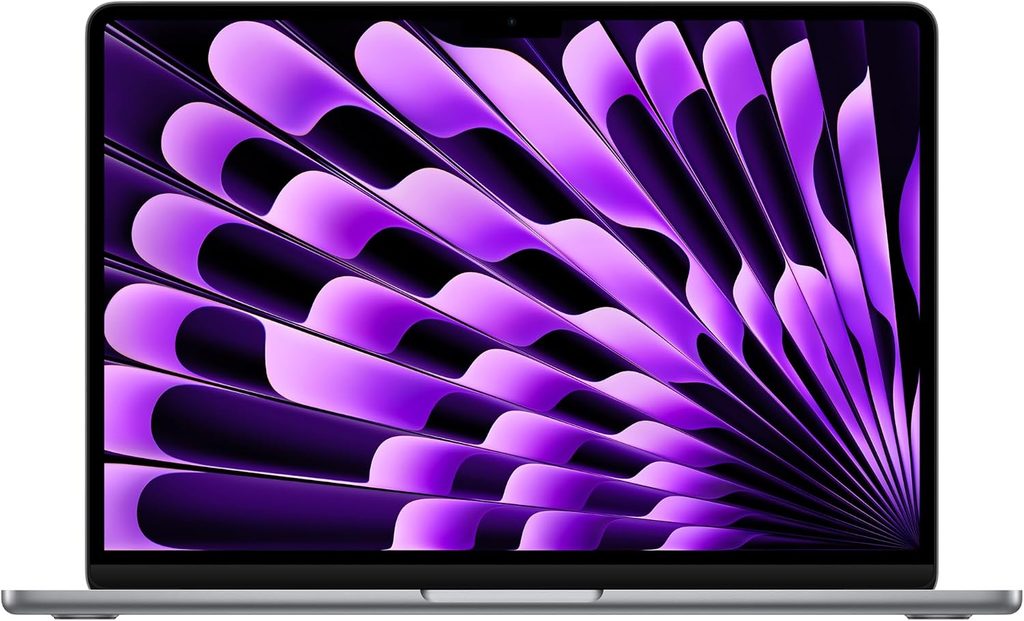
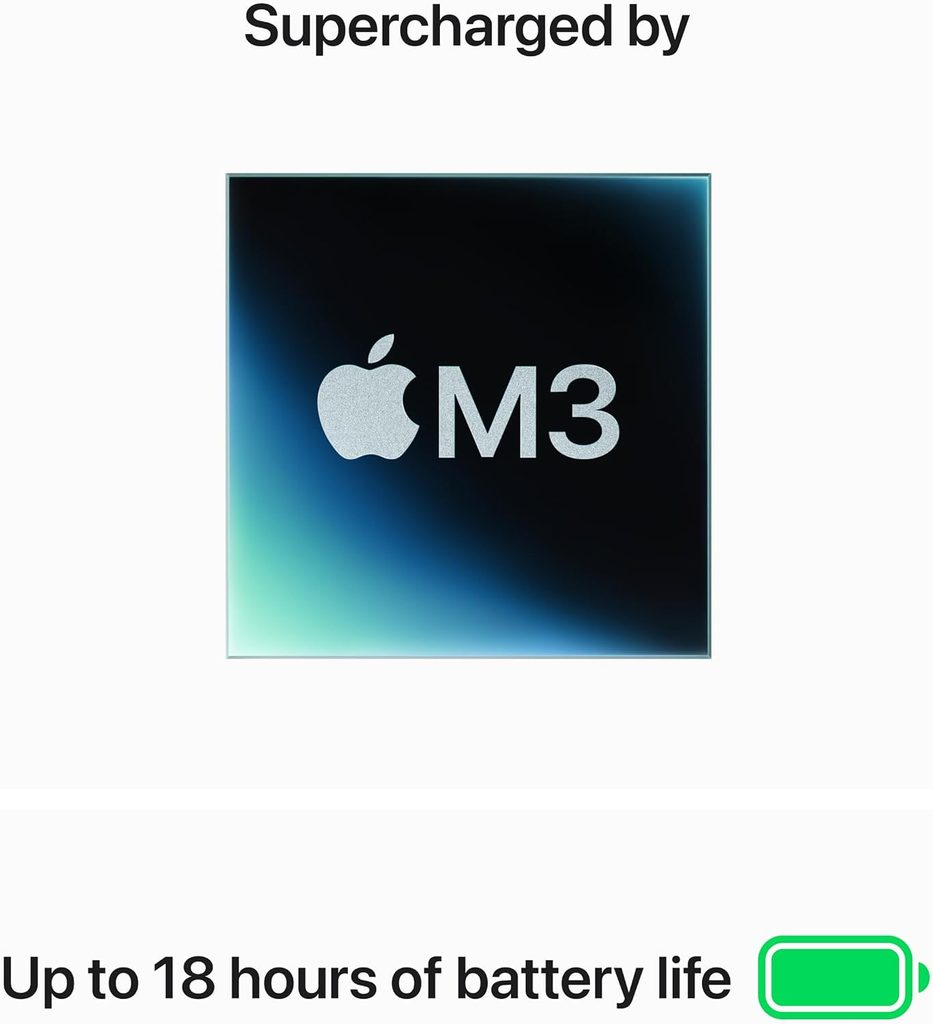
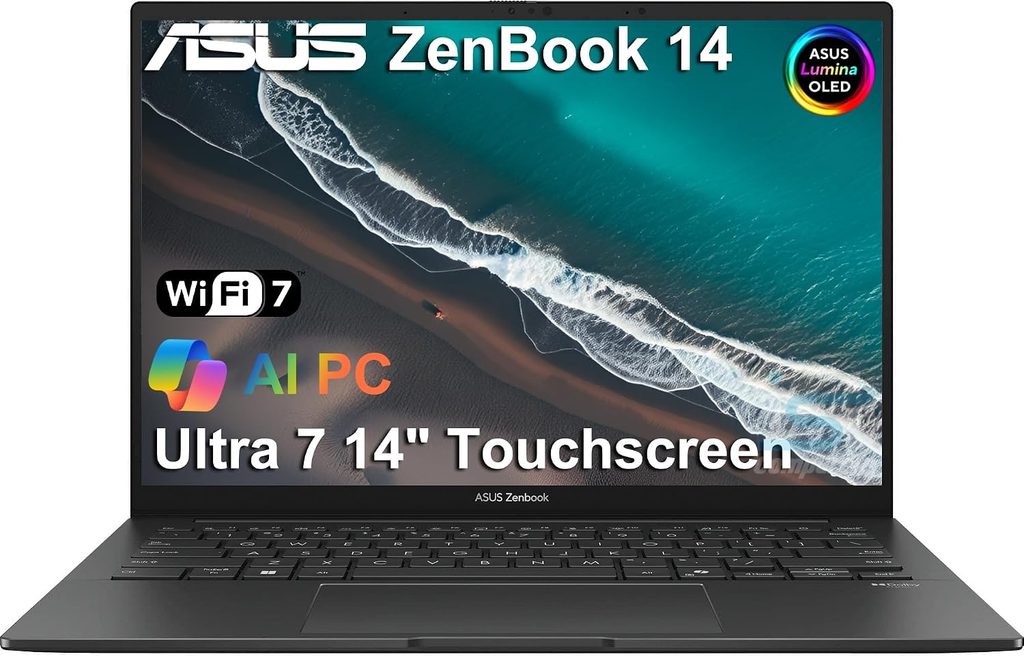
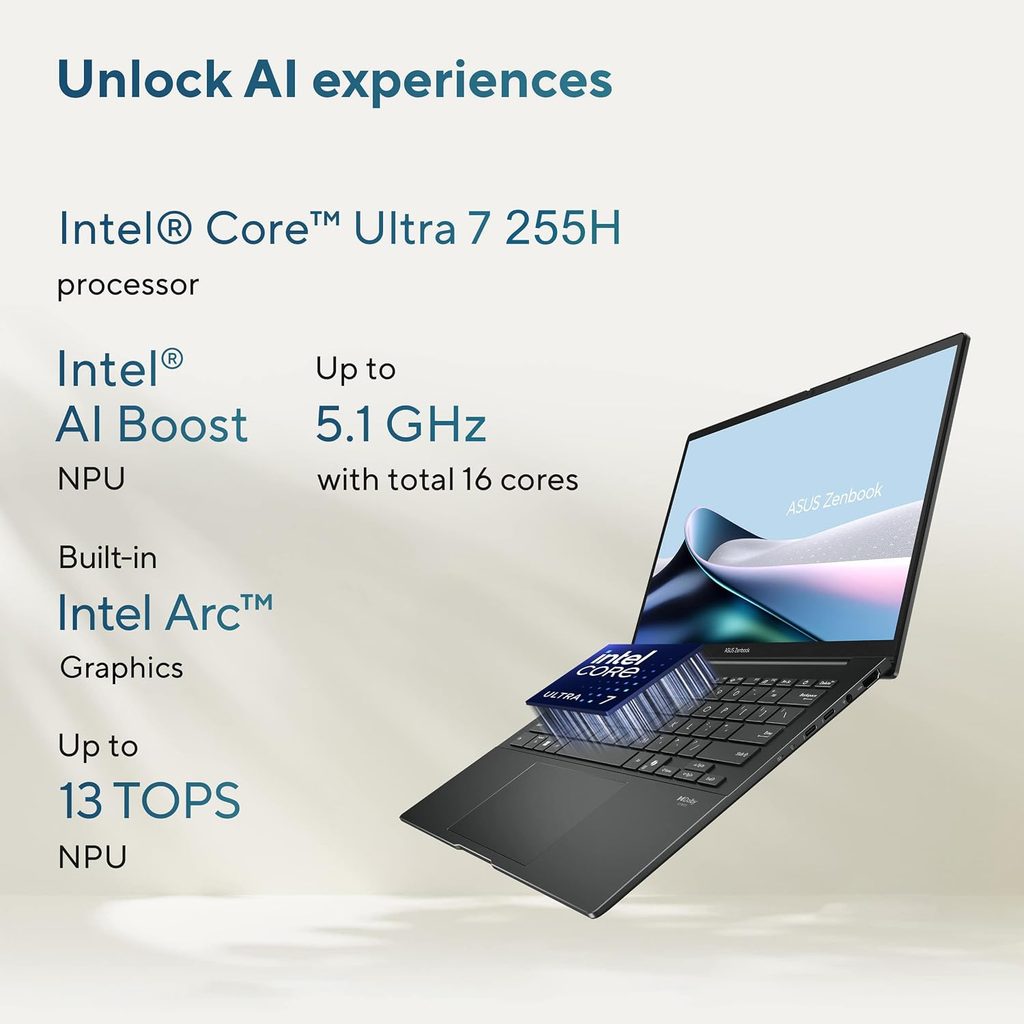
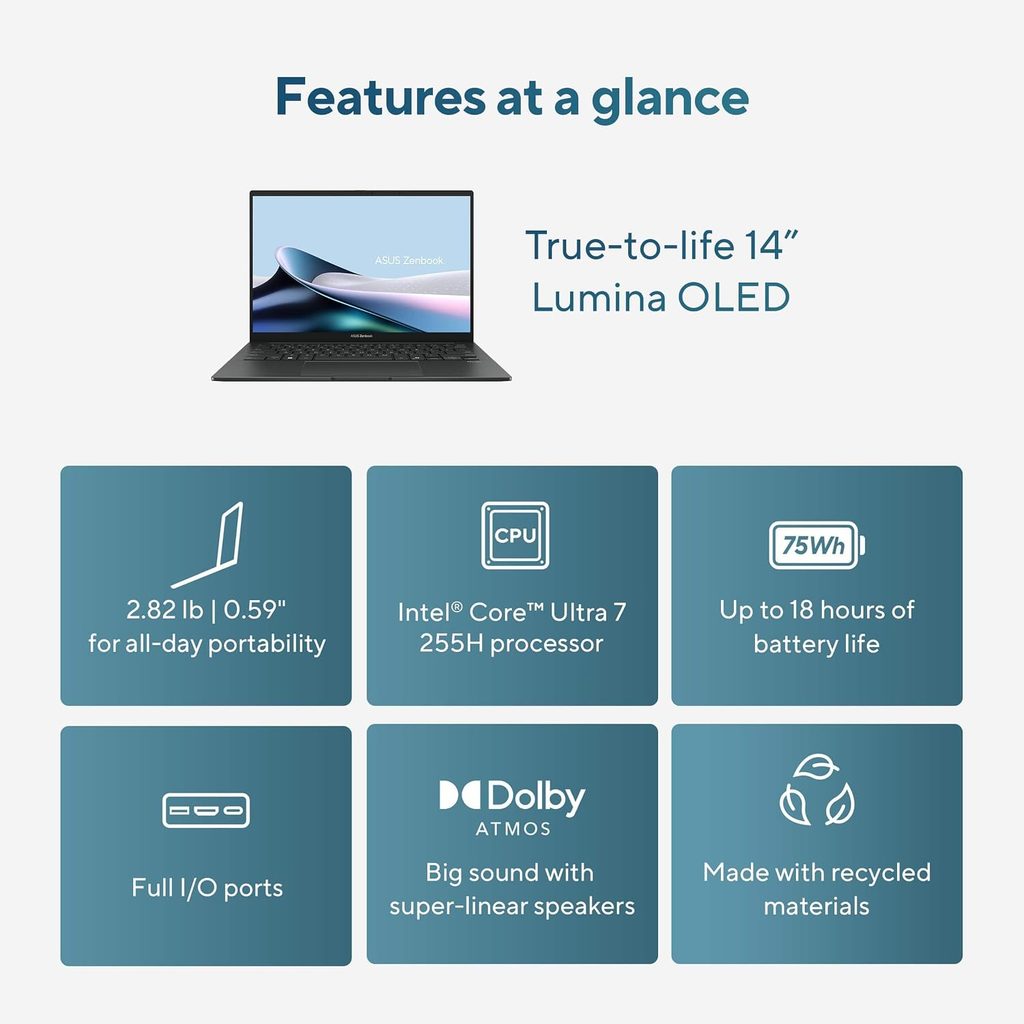
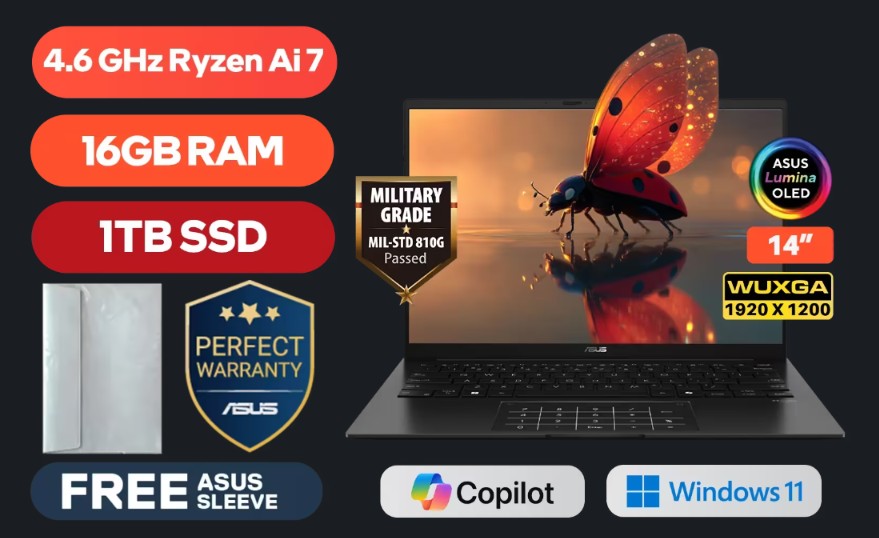
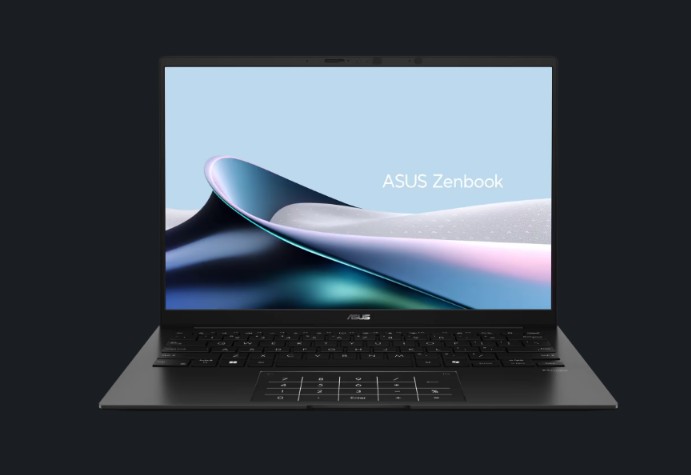
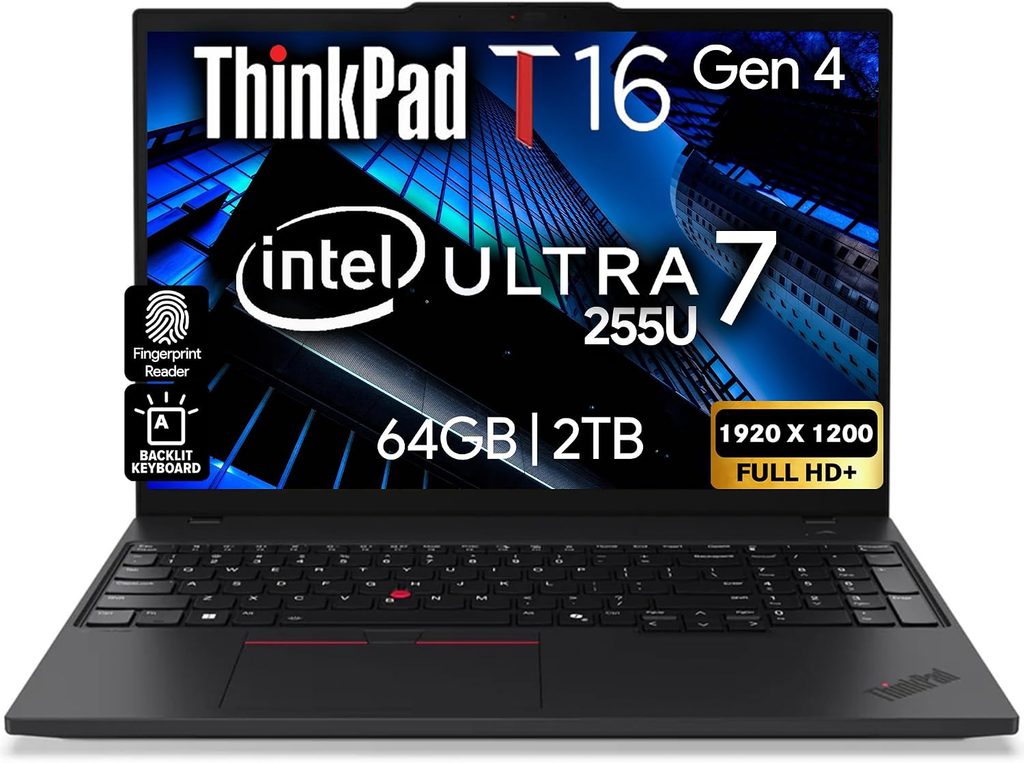
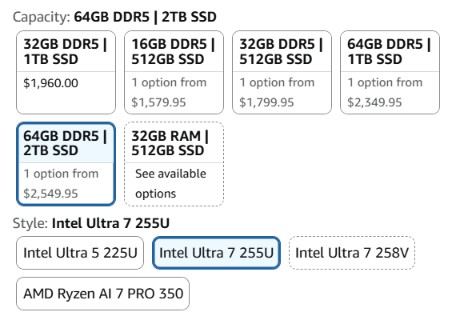
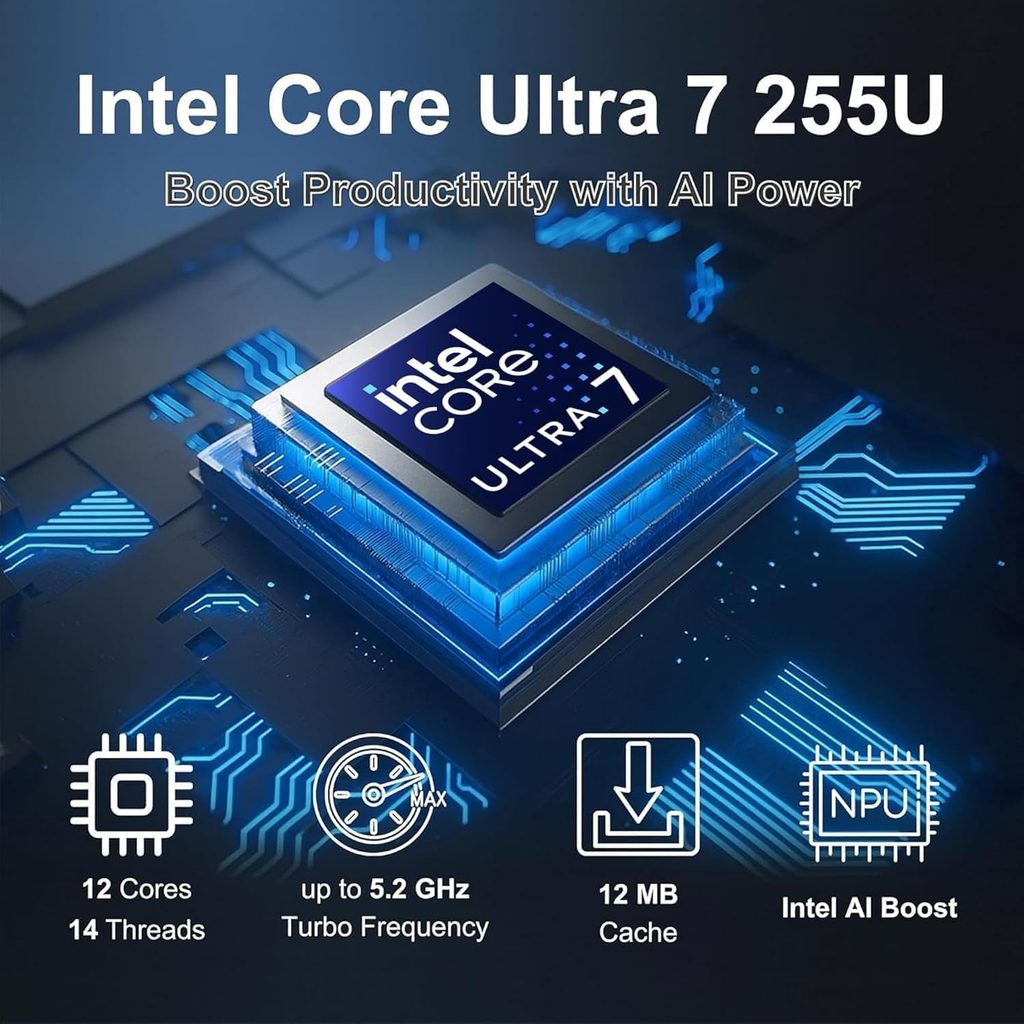
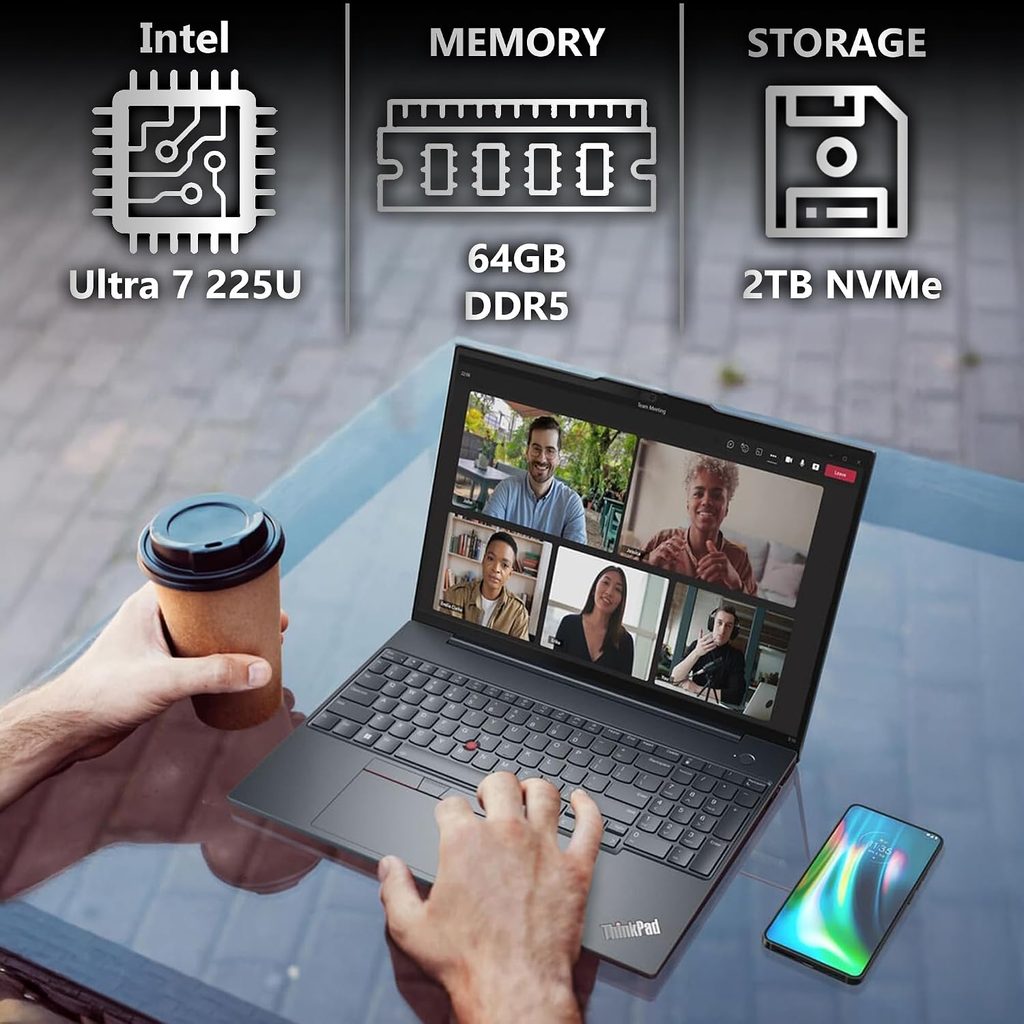
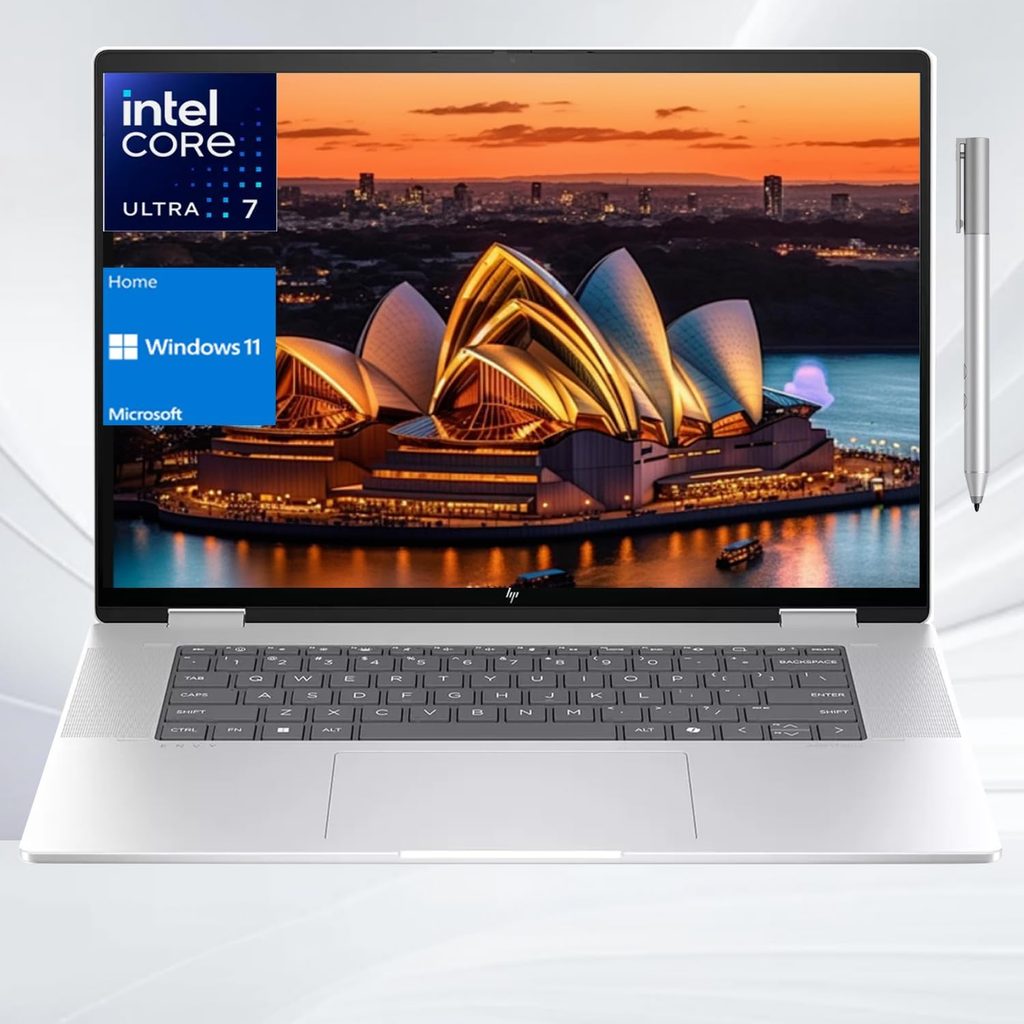
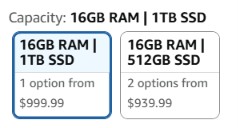
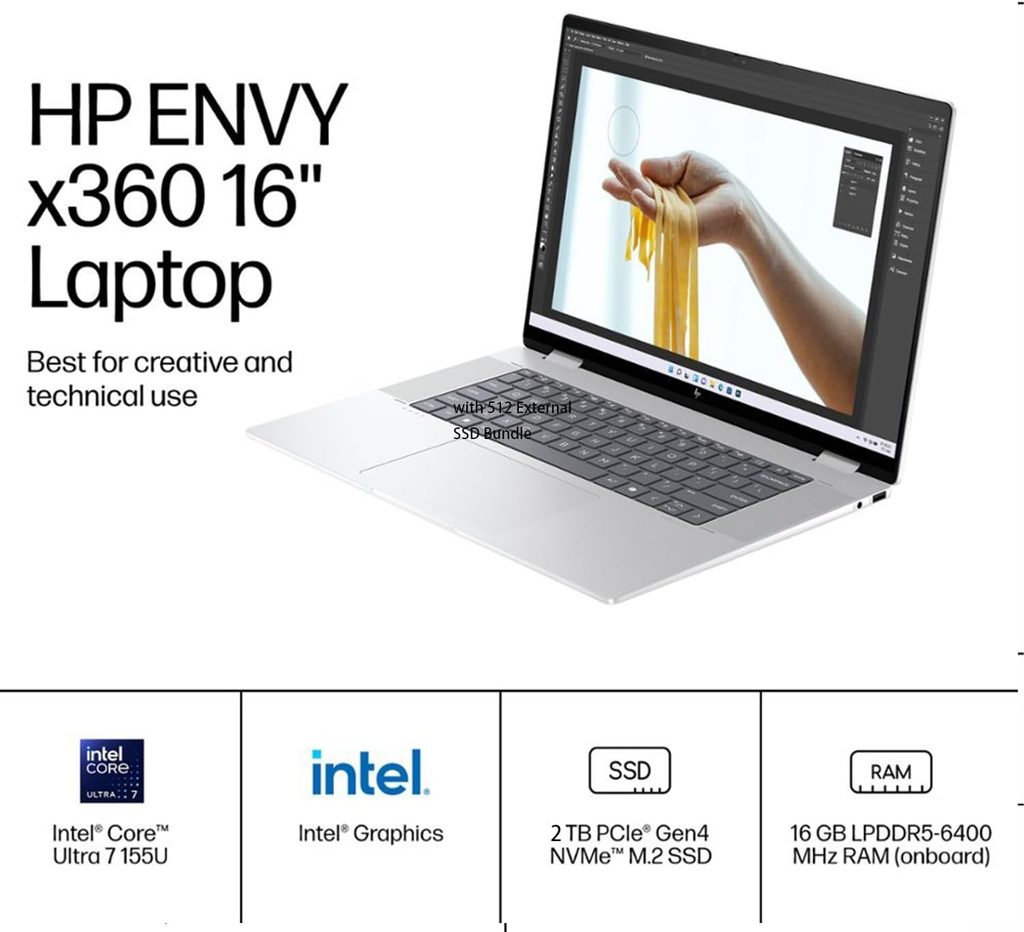
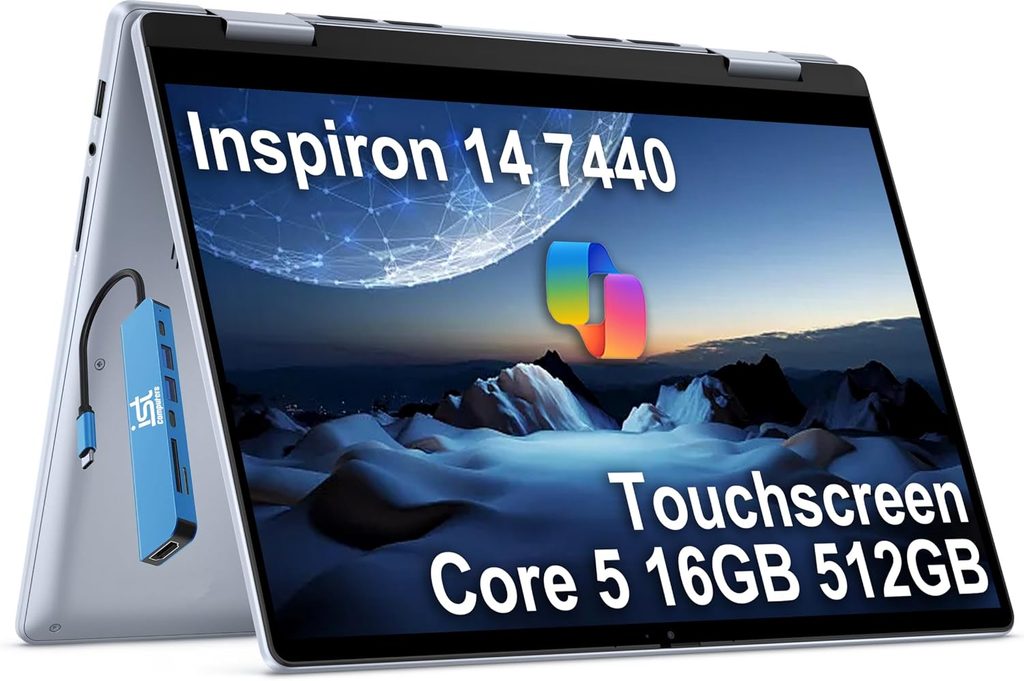
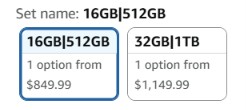
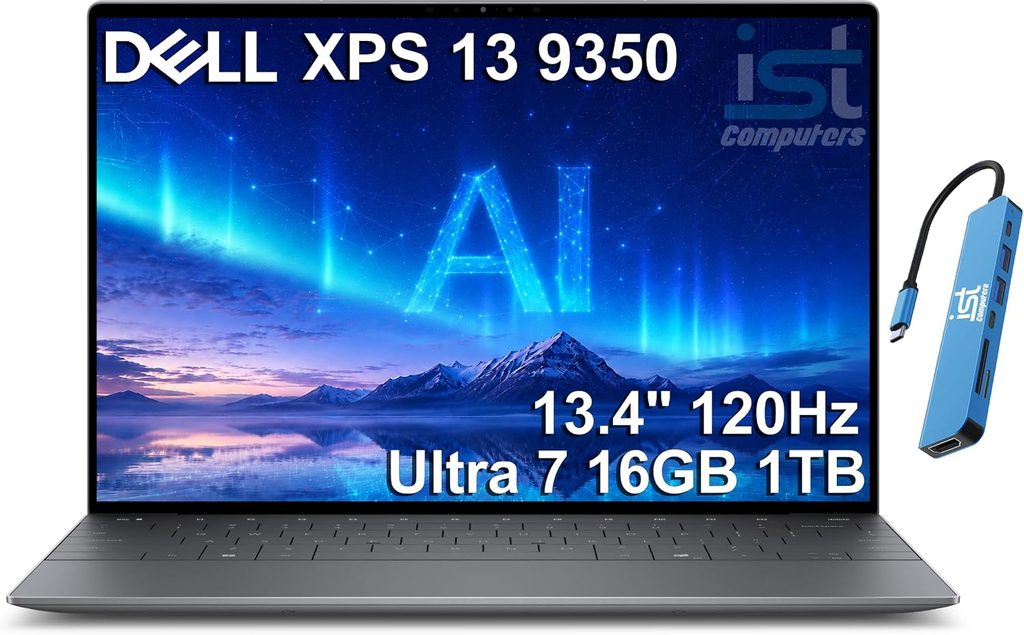
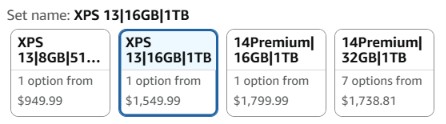
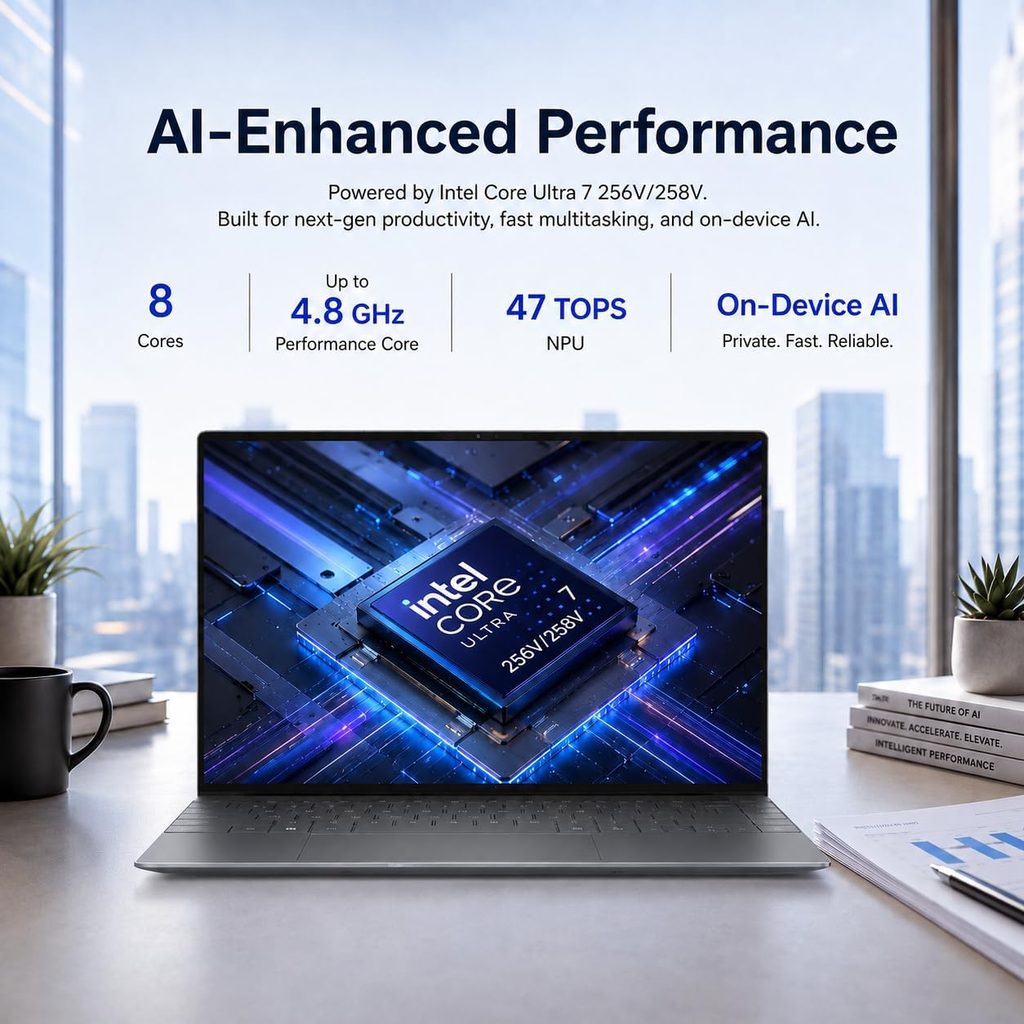
Paying more should get you useful things, such as 16GB of memory, a better screen, and stronger long-term durability. The Asus Zenbook 14 OLED is worth considering when its display, all-day endurance, and build quality match your needs. Premium pricing should not only buy a thinner case.
MacBooks are lovely for many teachers, but don’t buy one on a whim. Some employers require Windows-only software. Check your company’s tech requirements before committing.
The laptop specs online teaching platforms actually need
A laptop can open a platform and still struggle halfway through a live class. That distinction matters in online teaching. Your machine must handle live video, screen sharing, browser tabs, and other virtual classrooms throughout a full lesson.
Really Great Teacher Company’s current technical requirements call for an Intel Core i5 at 2.0GHz with four cores, 8GB RAM minimum, and 256GB of storage. Novakid has listed Windows 8 or newer, or macOS X Yosemite or newer, but current software is the safer choice. You may also use Zoom, Google Meet, Google Classroom, and employer-specific educational software. Teaching companies update their requirements, so check their latest pages before you buy.
| What to check | Practical minimum | Better for regular teaching |
|---|---|---|
| Processor | Recent Core i3 or Ryzen 3 | Recent Core i5 or Ryzen 5 |
| RAM | 8GB | 16GB |
| Storage | 256GB solid-state drive (SSD) | 512GB SSD |
| Webcam | 720p | 1080p |
| Internet | Stable broadband | Wired option or strong Wi-Fi 6 |
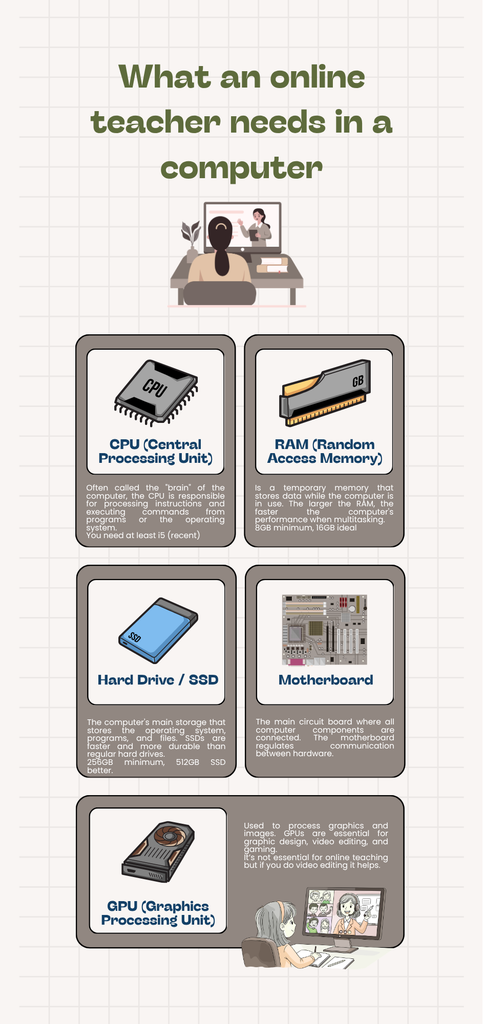
The practical takeaway is simple: 8GB can work, but 16GB gives your laptop far fewer reasons to complain.
Processor: why a modern Core i5 or Ryzen 5 is a safe choice
Processor names can be confusing. A recent Intel Core processor, such as a Core i5, is usually comfortable for live classes, screen sharing, and browser tabs. A newer Core i3 or Ryzen 3 can suit lighter schedules, while an i7 helps with video editing and heavier workloads.
Integrated graphics are sufficient for video calls, screen sharing, and ordinary lesson materials. Most teachers don’t need a dedicated graphics card.
The generation matters as much as the i5 or i7 label. An old i7 can be slower than a much newer i5. Don’t get distracted by one shiny word in the listing. Even an Asus Zenbook 14 OLED can come with different processor, RAM, and drive configurations, so check the exact model details.
One teacher, Lauren, described the frustration well: “I tried to use my usual computer again for one of these World Day lessons and it crashed again. Had to go to another computer. Yes, my i7 is not a problem with this but my i5 is giving me hassles with my signal bars…green to yellow to green again.”
That doesn’t mean every i5 is unreliable. Internet speed, Wi-Fi strength, browser load, and an aging laptop can all cause signal trouble. Still, a modern processor gives your lesson a sturdier foundation.
RAM: choose 8GB minimum, but 16GB is better
RAM is your laptop’s short-term workspace. When it runs out, everything slows down. Tabs hesitate. Videos stutter. Your reward slides take their sweet time.
Eight gigabytes is the practical minimum for video calls, educational software, and ordinary browser use. Sixteen gigabytes is more comfortable if you screen share, use lots of online resources, record lessons, or leave tabs open between classes.
Compare RAM storage needs separately: RAM affects multitasking, while drive capacity affects how many files you can keep locally.
As Monique put it, “I have 16 gig and it does make a difference. I can have lots of tabs open without it slowing down.”
Some laptops have soldered memory that can’t be upgraded later. Check that before buying, especially if 8GB is all you can afford now.
Storage and operating system requirements
Choose a 256GB solid-state drive (SSD), not old-style eMMC storage or a spinning hard drive. A 512GB SSD gives you more practical storage space for recordings, worksheets, images, apps, and personal files.
Cloud storage can reduce local file demands, but keep enough room for lesson recordings and essential materials. SSDs boot faster, open programs faster, and feel less fussy during a busy morning.
Keep your operating system current, too. Older versions may still run, but they miss security updates and can fall behind software requirements. Verify that your chosen platform and employer applications support it before buying.
Features that make live lessons easier and more reliable
Specs are the engine. These are the small features you notice during everyday online teaching.
Webcam, microphone, speakers, and screen quality
Webcam quality affects how clearly students see your face, expressions, and teaching materials. Look for good lighting, autofocus, and a camera position that keeps you centered.
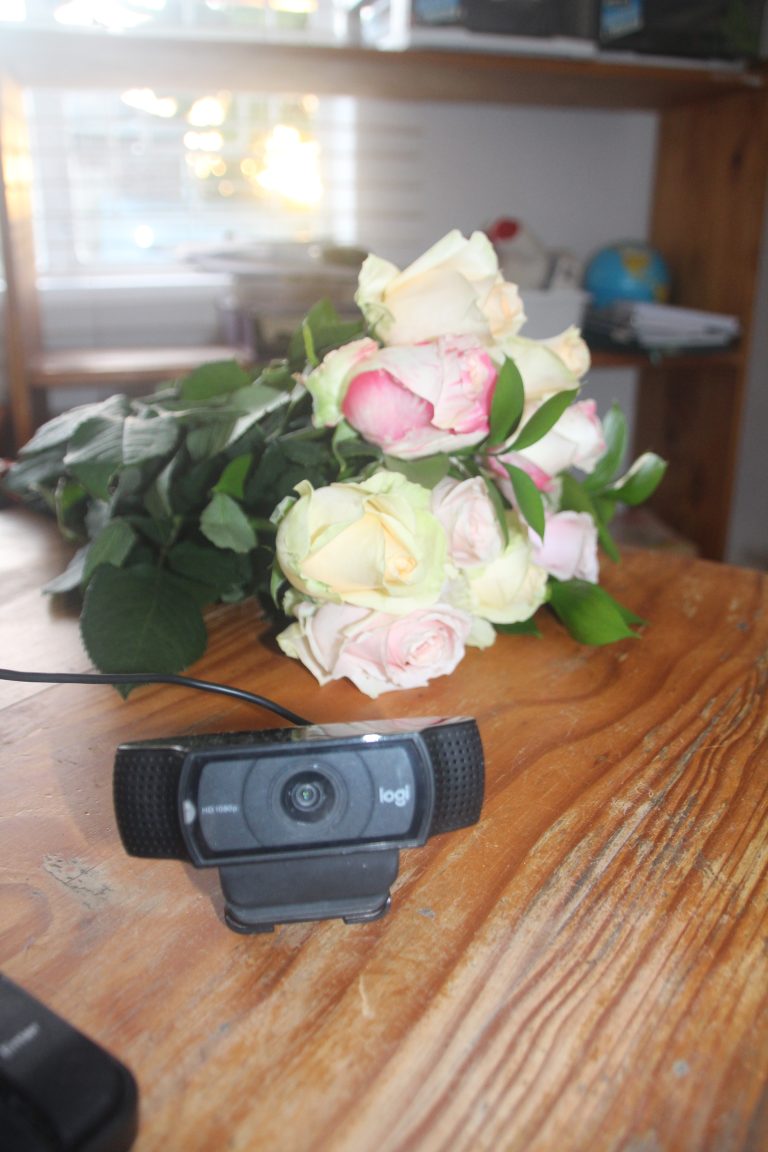
A 1080p or high-definition webcam is worth having when possible. Students can read your facial expressions better, and you won’t look like a blurry witness in a mystery show. A headset with a decent microphone can improve an average laptop more than you might expect.
A bright Full HD screen in a 14-inch or 15.6-inch size makes long lessons easier. Premium options such as the Asus Zenbook 14 OLED offer an appealing display, but OLED alone doesn’t guarantee better teaching performance.
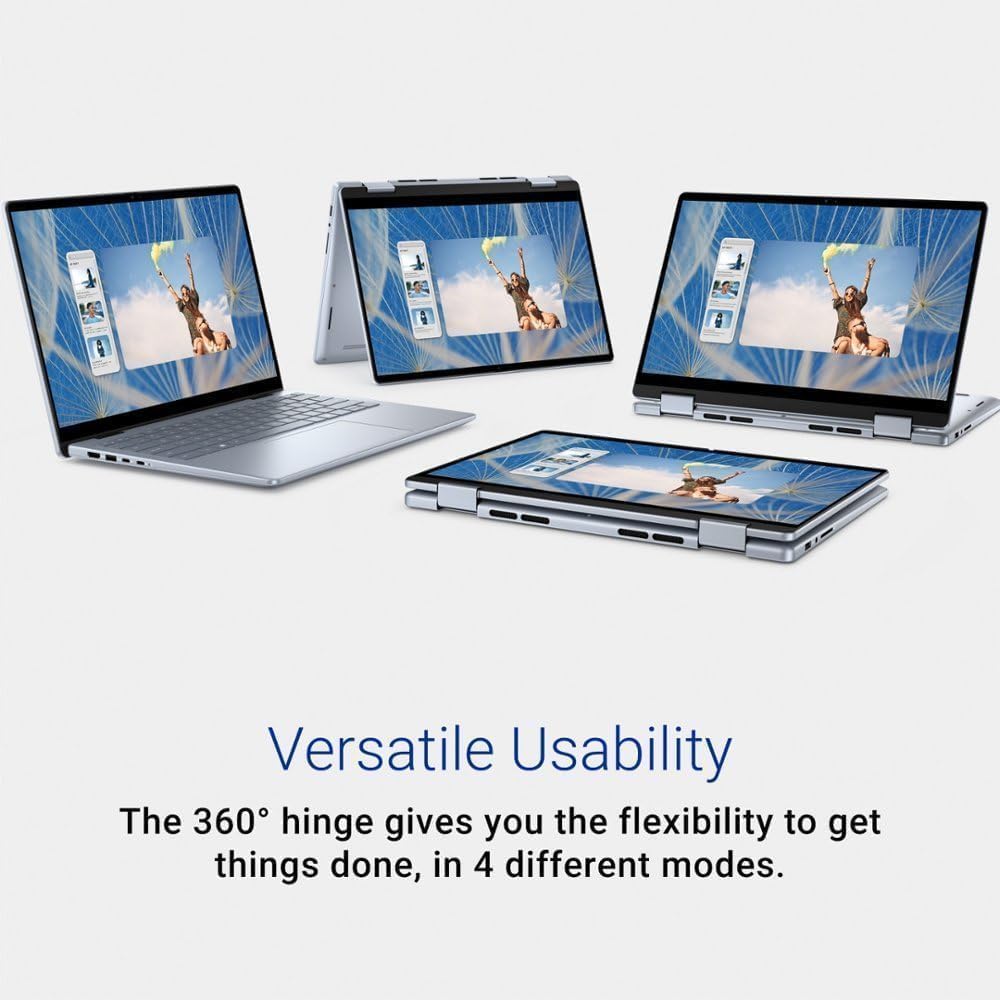
A touchscreen laptop can help when you annotate slides, demonstrate apps, or use a digital whiteboard. A 2-in-1 convertible, such as the Lenovo IdeaPad Flex 5i, offers that flexibility. Still, check the hinge quality, weight, and keyboard comfort before choosing the form factor.
Battery life, ports, keyboard, and portability
If you move between rooms or teach away from your desk, battery life and weight matter. A portable design is easier to carry with its charger, especially when you teach from different rooms.
A comfortable keyboard, preferably backlit, helps with lesson notes and chat messages. A sturdy hinge matters too, especially after hundreds of classes.
Useful ports include USB-A, USB-C, HDMI, and a headphone jack. Thin laptops often skip some of these, so budget for an adapter or dock if you need a headset, second monitor, or external webcam. These external devices can make a basic setup feel much more capable.
Cooling, Wi-Fi, and support for teaching software
Video calls create heat. So do classroom platforms such as ClassIn, particularly when they update or run beside other programs.
Chantal’s experience will sound familiar to many teachers: “Classin is taking a toll on laptops and constantly updating if you don’t have a good laptop it won’t run, not saying every company uses Classin but a lot are starting too. And yes it’s very expensive its taken me 5 years to get a decent set up and even now my laptop needs an update.”
Look for Wi-Fi 5 or Wi-Fi 6 support and reliable wireless connectivity. Router quality and room placement still affect call stability. Read cooling reviews and check warranty terms too.
A laptop that gets hot and loud during every class becomes tiring fast. Choose one that can handle your teaching platform without constant slowdowns.
A great webcam can’t rescue a laptop that freezes when you share your screen. Put performance first, then improve the audio, display, webcam, and other conveniences.
How to choose the right laptop for your online teaching setup
Start with your workload. Occasional tutoring and lesson planning can work well with 8GB RAM and a recent Ryzen 3 or Core i3. Full-time ESL teaching, grading assignments, and several apps at once call for 16GB RAM and a Core i5 or Ryzen 5. Recording courses and storing materials increases the required storage space.
A Lenovo IdeaPad Flex 5i suits teachers who benefit from touch input or tablet-style positioning. Teachers who value a light build and display quality may prefer an Asus Zenbook 14 OLED. A MacBook Air M3 is a quiet, portable choice, but verify employer software compatibility first.
Before you buy, check every tool you use:
- Zoom, Google Meet, Microsoft Teams, ClassIn, and your employer’s classroom platform.
- Your browser, digital whiteboard, educational software, screen-sharing tools, and lesson-recording software.
- Google Workspace for documents, presentations, file organization, and collaboration.
- Required operating system, processor, RAM, webcam, internet connection, and battery life.
- Whether your preferred Chromebook, Chromebook Plus, Mac, or Windows laptop works with company software. A Chromebook Plus is appropriate only when the employer’s platform and educational software work in a browser.
Avoid 4GB RAM, eMMC storage, outdated processors, and laptops with memory you can’t upgrade. Use cloud storage to organize worksheets and recordings, but keep local backups of essential lesson materials. Leave a little room in the budget for a laptop stand, headset, external webcam, second monitor, or backup internet option. Those extras can make teaching feel much less cramped.
Before your first student arrives, install updates, test your webcam and microphone, sign in to every platform, open your usual tabs, and try screen sharing. Charge the laptop, organize lesson files, and run a practice call. A backup plan is not dramatic. It’s teacher wisdom.
Frequently Asked Questions
How much RAM does an online teaching laptop need?
Eight gigabytes is the practical minimum for video calls, browser tabs, and ordinary educational software. If you teach regularly, record lessons, or multitask heavily, 16GB will feel much smoother.
Is a Chromebook good for online teaching?
A Chromebook or Chromebook Plus can work well for browser-based classrooms, Google Workspace, and video calls. Check that your employer’s platform and required software work in ChromeOS before buying, since Windows-only apps may not run.
Is a MacBook suitable for online teachers?
A MacBook Air M3 is quiet, portable, and powerful enough for most everyday teaching tasks. Confirm that your employer does not require Windows-only classroom software or other applications before choosing one.
Do online teachers need a dedicated graphics card?
Most teachers do not need a dedicated graphics card for video calls, screen sharing, digital whiteboards, or lesson materials. Integrated graphics are usually sufficient unless you also edit a lot of video or use other demanding creative software.
Final Thoughts
The right laptop for online teaching can support a demanding teaching day, not just look good in a product photo. A recent Core i5 or Ryzen 5, 8GB RAM at minimum, 16GB when possible, and a 256GB SSD or larger will cover most classrooms well.
Prioritize platform compatibility, a clear webcam, solid battery life, and a laptop that won’t need replacing next year. The Asus Zenbook 14 OLED is a premium option, while the Lenovo IdeaPad Flex 5i offers flexible mid-range value. Configuration matters more than the name, and a well-matched mid-range setup often beats an expensive design or oversized specification sheet.
Disclaimer: This post contains affiliate links
3 Comments