Generate a Word Search Book for Amazon KDP: 7 Steps
The OTT Puzzle Generator is a word search maker and puzzle maker. Use it to create a word search book, edit it in Canva, and publish it through Amazon KDP. I made a Christmas-themed book for adults, and it was lovely to see it appear on Amazon! The same printable format can also work as a worksheet for classroom or home use.
There were a few things to sort out along the way, including section pages, page numbers, and a cover that fitted the finished interior. I started by choosing the theme and getting the word lists together.
Key Takeaways
- Use the OTT Puzzle Generator to create word search puzzles from a CSV file or pasted word lists, then export the interior as a PDF.
- Organize the puzzles into themed sections in Canva, add a contents page and illustrations, and apply page numbers after inserting extra pages.
- Calculate the cover dimensions using the finished interior’s trim size and page count, then save the cover and interior as separate PDF Print files.
- Complete the KDP book details and print settings, upload both PDFs, review every page in the previewer, and compare similar Amazon listings before choosing a price.
1. Generate word search books with the OTT Puzzle Generator
Choose a theme and prepare the words
Before opening the app, I asked ChatGPT for ideas. It suggested gardening, nostalgia, Christian and Bible themes, hobbies, puzzles for seniors, animals for children, travel, and food and drink.
There were seasonal ideas too. I chose Christmas word searches for adults, a themed word search puzzle book.
The app has built-in themes, but I wanted to create custom puzzles from my own lists. I used its word search generator as a word search maker and puzzle maker, building unique puzzles around the Christmas theme.
I asked ChatGPT to prepare a custom word list and organize the terms into a word bank. My request included:
- Each game should have 12 to 15 words and a medium difficulty level.
- The first column should contain the game title, with its words in the remaining columns.
- Each game should occupy one row, preferably in a CSV file.
Import the lists into the app
I opened the OTT Puzzle Generator from its folder. It runs in your browser from a local file and can work offline. ChatGPT was my choice for preparing the words; you don’t need an AI account to run the generator.
You can upload a CSV file or paste your lists into the tool. Each row becomes its own game with a title. I downloaded the Christmas word lists and used them to generate the interior PDF. I checked a sample grid, its grid size, and the word placement.
I then noticed that I’d left out the title and included page numbers too early. I regenerated the interior with a title page for Christmas Word Search for Adults, leaving the numbering out because I planned to add section pages.
2. Edit the interior in Canva
Upload the PDF and organize the sections
The next step was to upload the generated PDF into Canva. I found it under Uploads and started separating the games into themed sections.
These included Christmas decorations and Christmas food. Grouping these games this way gave me sections to work with, rather than one long run of pages. I kept the answer key on separate solution pages for easy checking.
Choose festive fonts and pictures
I looked at word search books on Amazon for presentation ideas. One small thing I noticed was that listings used “word search” as two separate words, so I adjusted my wording to match.
The word search puzzle text needed to stay clear. For the headers, though, I could try something more decorative.
I experimented with festive fonts and font combinations, including Playfair Display. I eventually used Cinzel Decorative for the headers.
For the artwork, I asked for cozy, heartwarming Christmas images. I generated options for the cover and pictures based on the book’s chapters. I downloaded each section illustration as a PNG, then uploaded the PNG files to Canva.
One section somehow missed out on its picture. I went back and added it so that every section had one. There always seems to be one more little thing!
3. Create the contents page and add page numbers
Once the sections were in place, I added a contents page. I copied a layout from another project and changed it for this book.
The contents needed to reflect the sections I’d created, including Christmas decorations and Christmas food. If you include solution pages after the themed sections, list them in the contents too. That was another reason to get the structure sorted before finishing the numbering.
Add the numbers through Canva
In Canva, I went to Text, then Page numbers, and applied them across the pages.
Although Canva added the numbers automatically, I was doing this at the editing stage rather than through the puzzle generator. That mattered because I’d inserted extra pages between the puzzle sections.
Leave the generator’s page numbers off when you’re going to insert section pages in Canva. Add the numbering after those pages are in place.
This was the correction I’d made when regenerating the original PDF. Keeping the early numbering would have caused problems once the book was divided into sections.
By the end of this stage, the interior had its themed sections, pictures, decorative headings, contents page, and page numbers.
4. Calculate the cover dimensions and design the cover
Use the finished interior to size the cover
With the interior complete, I moved on to the cover. Its dimensions depend on the final page count, so I calculated them for this book rather than reusing another cover’s measurements.
In KDP’s cover calculator, I selected paperback, a black-and-white interior, white paper, left-to-right reading, and inches. I entered the book’s trim size and final page count, then downloaded the template.
Amazon’s paperback cover preparation guide explains the calculator and template process.
Build the cover in Canva
I created a custom-size Canva design using the calculated full-cover width and height. The downloaded template came in a ZIP file, so I extracted it and uploaded the template image as a layout guide.
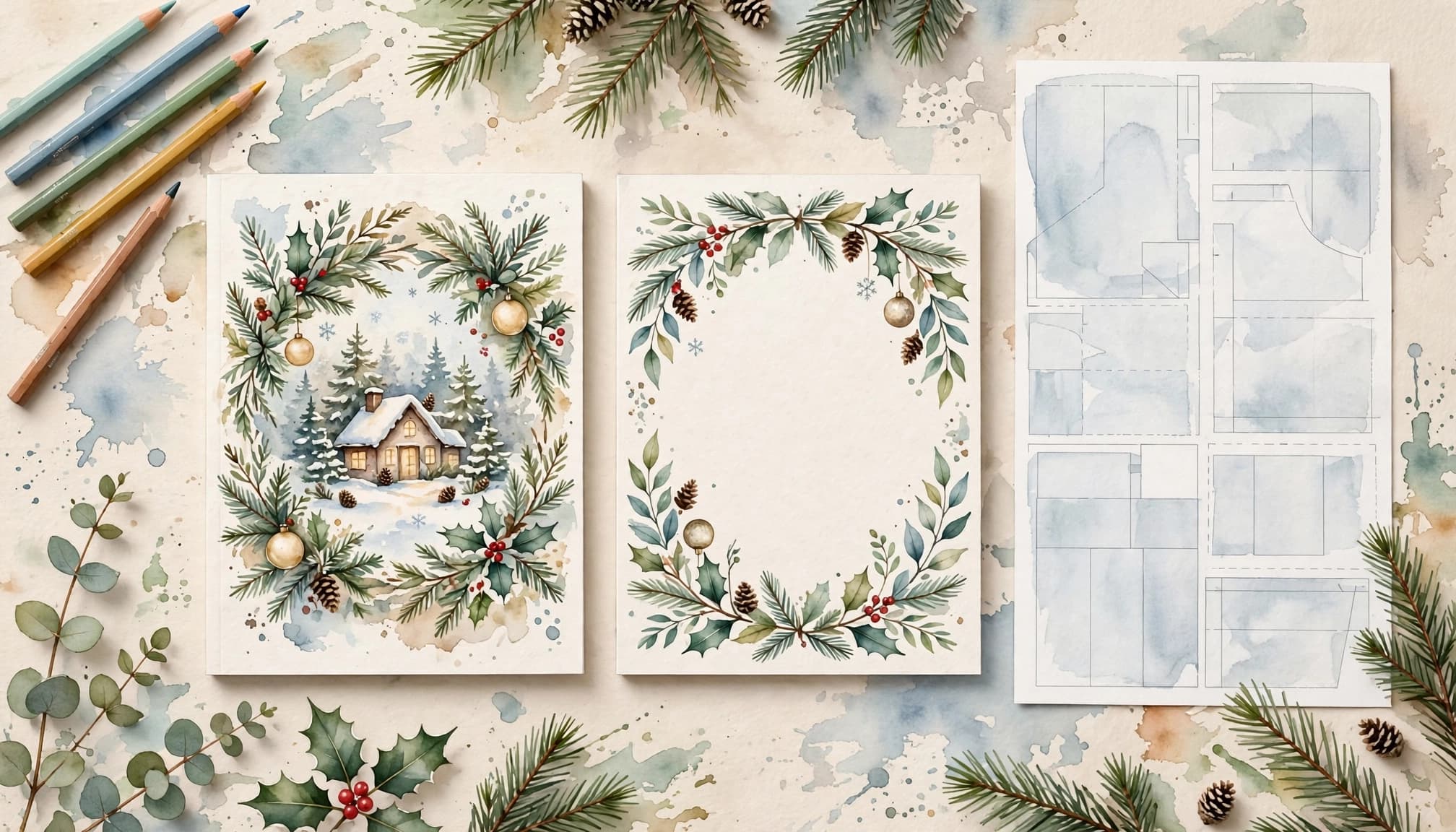
I tried the generated cover pictures, added a background rectangle in a similar color, and adjusted its position behind the artwork. Covering the template markings took a little fiddling.
The cover included Christmas Word Search for Adults, wording about the puzzles, and “Keep warm and busy this festive season.” I also worked on the back-cover blurb, barcode area, and sizing.
Save the printing files
I used Canva’s download option to save the cover and interior separately as PDF Print files, choosing the professional-printing option rather than a digital-viewing file.
I used Canva’s paid-account printing options for this part. I also have a post about Canva Education access for teachers.
5. Fill in the Amazon KDP paperback form
Enter the title, author, and description
I created a new paperback in KDP and worked through the book details and file uploads.
I entered Christmas Word Search for Adults as the title and used “Keep warm and busy this festive season” as the subtitle. I added my name, Heather Step, as the author, with no contributors or series information.
ChatGPT helped with the description. It used the book’s main phrase prominently, which was what I wanted for people searching for that type of book.
I confirmed that I owned the copyright and that the book didn’t contain sexually explicit content. I left the reading-age field blank.
Choose categories and keywords
Finding the categories took some looking around. I chose Word Search within Puzzles & Games under Humor & Entertainment, then added Memory Improvement under Self-Help.
I considered other possibilities but didn’t use the coloring-book category. I also left large print unselected because the puzzle text wasn’t large enough for that description.
The keyword ideas included “Christmas word search for adults,” “brain games for seniors,” and “Christmas activity book.” The Christmas word search phrase was the main one I focused on.
Match the printing settings
I requested and assigned a free KDP ISBN, then selected black-and-white printing on white paper, no bleed, and a matte finish.
The trim size needed to match the interior. I’d selected the wrong size while publishing my Sudoku book, so I paid attention to that!
Amazon’s trim size and margin guidance covers these print settings.
6. Upload the files and check the preview
I uploaded the interior PDF as the manuscript, then uploaded the separate cover PDF.
The manuscript uploaded quickly. The cover needed processing time, even after KDP showed that the upload itself was complete.
I also answered the AI-content questions to reflect the ChatGPT text and generated images I’d used. There were no translations.
Look through the book in the previewer
Once the files were ready, I launched the KDP previewer.
This was the first time I’d opened a preview and found no paperback formatting problems flagged. That was a lovely surprise!
I still went through the pages to see how everything looked. The content stayed within the allowed frame, and the pages appeared to be in place.
The absence of error messages didn’t replace looking through the pages. I checked the layout before approving the preview.
With the preview looking fine, I approved it and selected Save and Continue. The files were ready, and the next job was pricing.
7. Research the price and publish the paperback
Compare similar books on Amazon.com
Before setting the price, I searched Amazon.com for comparable Christmas word search books for adults.
I wanted to see what similar books were selling for. After looking through the listings, I chose a price for my paperback and submitted it for publication.
At that point, the book had been submitted for KDP’s review. I still had to wait for the publication confirmation.
Watch for the confirmation email
Later, I received an email saying the book had been published. I opened the listing, and there it was!
The email explained that the listing and its features don’t necessarily appear everywhere at the same time. The marketplace pages, product description, linked book details, and Look Inside feature could become available separately.
It also mentioned the option to order author copies at printing cost.
We had managed to publish the word search book. Yay!
Frequently Asked Questions
Can I use the OTT Puzzle Generator without an AI account?
Yes. The generator runs in a browser from a local file and can work offline. AI was used to prepare the example word lists, but it isn’t required to run the generator.
When should I add page numbers to the interior?
Add page numbers in Canva after inserting section pages and other extra pages. Leave the generator’s numbering off so the numbers match the finished page order.
How do I calculate the paperback cover dimensions?
Use KDP’s cover calculator with the final trim size and page count, along with the paperback and printing settings. Download its template and use the calculated cover dimensions for your Canva design.
What should I check before approving the KDP preview?
Look through the pages to confirm the content stays within the allowed frame and the pages appear in the right places. A preview with no error messages still needs a visual check.
A Christmas Word Search Book, Published
The generator gave me the puzzle interior. Canva was where I organized the sections, added the pictures and numbering, and finished the cover.
The detail that mattered throughout was keeping the files and KDP settings matched. Once the preview was approved and the paperback submitted, it was lovely to receive that email and see the finished book on Amazon.
Want to publish your own Word Search book or generate your own puzzles? Get the puzzle generator here.