How to Publish a Sudoku Book on Amazon KDP: 7 Steps
This post will show you how to generate a Sudoku book interior with the OTT puzzle generator, edit it in Canva, and upload the finished files to Amazon KDP as a paperback. The OTT tool runs locally from a file, so you could even do that part offline if you want. The puzzle generation took me about three minutes. Getting the pictures, cover, and printing details sorted took rather longer!
The inspiration behind making this sudoku book is my mother. She absolutely loves sudoku. She carries it around everywhere and when she’s at my house she’s going into the magazines and newspapers to do sudokus. She claims this is really helping with her memory power, and who am I to argue?
I made “Grandma’s Sudoku Book,” with 50 easy, large-print puzzles and little pictures of grandma throughout in honour of her. Here’s how I put it together, starting with the app.
Key Takeaways
- The OTT puzzle generator runs locally and can create a Sudoku book interior with puzzles, instructions, an answer key, and page numbers.
- Edit the generated PDF in Canva, then create a contents page and a cover sized for the book’s final trim size and page count.
- In KDP, match the trim size and printing options to the files, upload print-quality PDFs, and fix any pages flagged in the preview.
- Compare similar books and account for printing cost when setting the price before submitting the paperback for review.
1. Generate the puzzle book interior in the app
Open the OTT puzzle generator
In the folder, there’s a file called the “OTT puzzle generator.” It opens in Chrome, so it looks as though you’re working online, but it’s a local document you can use offline.
The generator offers word search puzzles and Sudoku puzzles. I chose Sudoku for this book.
There are easy, medium, and hard options. You can see the difference in the grids: easy puzzles have more numbers filled in, while the harder ones have fewer. I went with easy and entered 50 puzzles.
For a word puzzle, you can use a word generator to make a word list around vocabulary, a spelling test, or parts of speech.
Choose the size, layout, and extras
I selected 8.5 x 11 inches for the trim size. This needs to match the size entered later in KDP. I missed that the first time I did this, so it was something I wanted to get right this time. Amazon’s trim size and margin guidance covers those print settings.
You can have one puzzle per page or two. As I was making this book with seniors in mind, I chose one per page and large print.
I entered “Grandma’s Sudoku Book” as the title and kept the instructions, answer key, and page numbers switched on. Those options can be unchecked if you don’t want them.
Then I clicked “Make my PDF,” chose where to save it, and opened the file. There it was: a title page, how-to-play instructions, the puzzles, and answers at the back. The basic interior was ready.
2. Edit the book in Canva
Give the plain pages some personality
The generated PDF had everything in place, but it looked rather plain. I uploaded it into Canva to add something a bit more cheerful.
For my mom influencer journal, I’d used faded background pictures, an idea I’d picked up from Becky Beach. I wanted to try that again with grandmother-themed images.
Canva had plenty of grandma graphics, although searching for a grandmother doing Sudoku didn’t always produce someone doing a puzzle. Some were reading books, which could still work as background pictures. I could also upload my own images to use in Canva.
I added grandmas reading, using a phone or laptop, cooking, painting, and enjoying other activities. Modern grandma! The one with the phone reminded me so much of my mother.
Experiment with the images and transparency
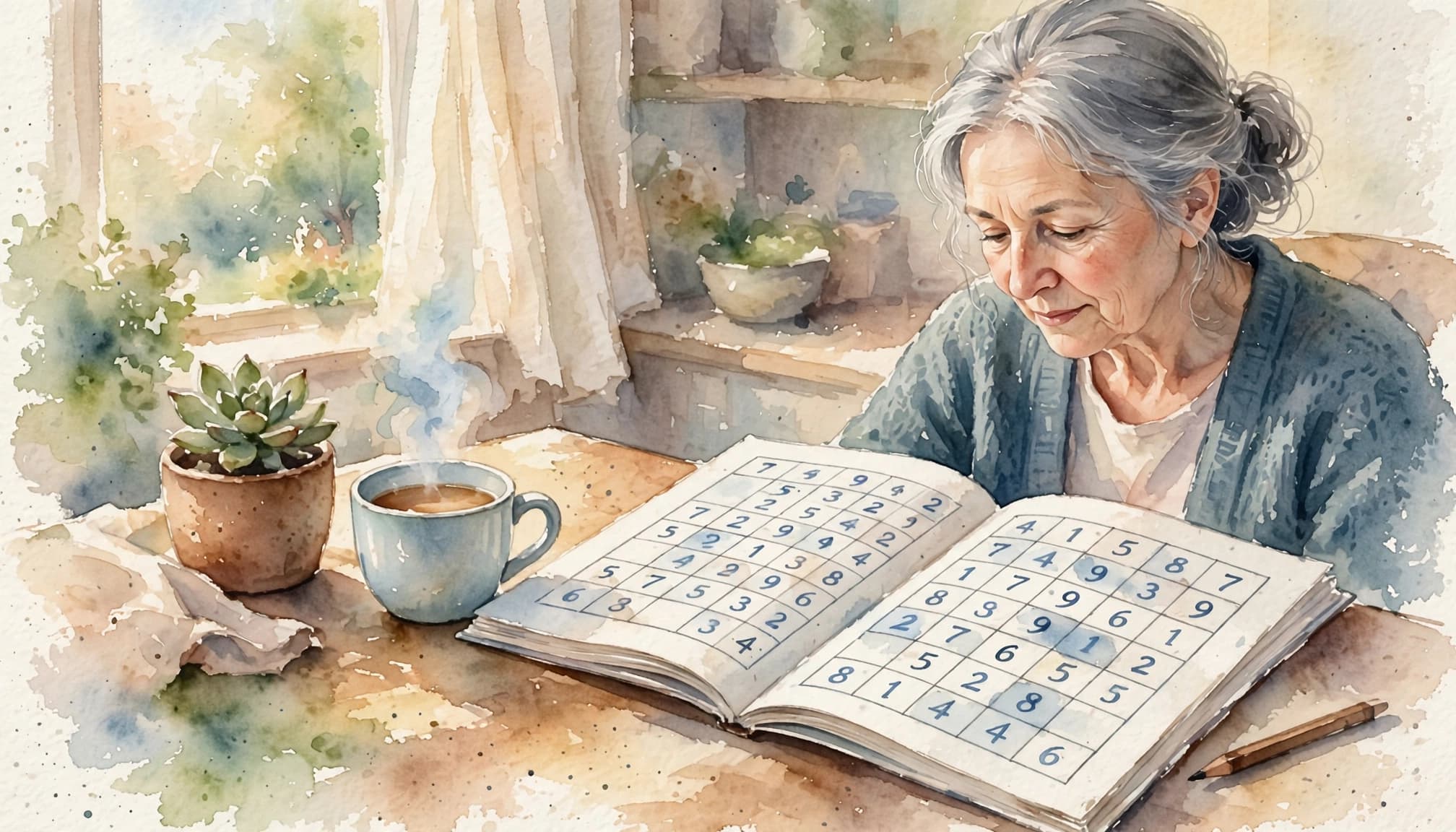
I also used an AI image generator to create a grandmother curled up with a Sudoku book. It took a few attempts. Eventually I got a version where she looked happy about her puzzle.
I kept that image for the cover and used the other grandmother pictures as subtle interior backgrounds. In Canva, I reduced the transparency, trying values around 19 to 23 so the pictures were faint.
I decorated the first 25 puzzle pages, then repeated those backgrounds for the remaining puzzles. That gave me little pictures of grandma throughout without finding 50 different designs.
3. Create a table of contents
I’d started editing before realizing I’d forgotten the contents page. I also hadn’t put my name inside the book. A couple more things to sort out!
I copied a contents layout from another KDP workbook I’d made with the sight words generator, then changed the entries for this book:
- How to Play: page 3.
- Sudoku Games: page 4.
- Answers: page 54.
There isn’t a huge amount to list in a Sudoku book, but those are the three places a reader might want to find.
Check the spelling throughout
This was also where my ongoing battle with the word “Sudoku” caught up with me. I kept checking how to spell it, then discovered I’d already used the wrong spelling in some of the artwork.
That meant revisiting the affected design and working out whether to replace the text or generate the image again. Some of the lettering wasn’t something I could simply click and edit.
The title, contents, cover, and later KDP details all needed the same spelling: Sudoku. Such a short word to cause so much trouble!
4. Create a cover that fits the finished book
Calculate the cover dimensions
With the interior together, I moved on to the cover. Becky Beach’s tutorial had helped me with an earlier cover, and I used that process again.
I used KDP’s cover calculator, and selected paperback, black-and-white interior, white paper, left-to-right reading, and inches. My trim size was 8.5 x 11 inches, and the book had 63 pages. I see there is also a cover creator, which I might try next time.
The cover dimensions depend on the final page count. A template from another book won’t necessarily fit, even when the trim size is the same.
I downloaded and extracted the template, then created a custom-size Canva document using its full-cover dimensions. KDP’s cover preparation guidance also explains why the finished interior page count matters.
Design the front and back
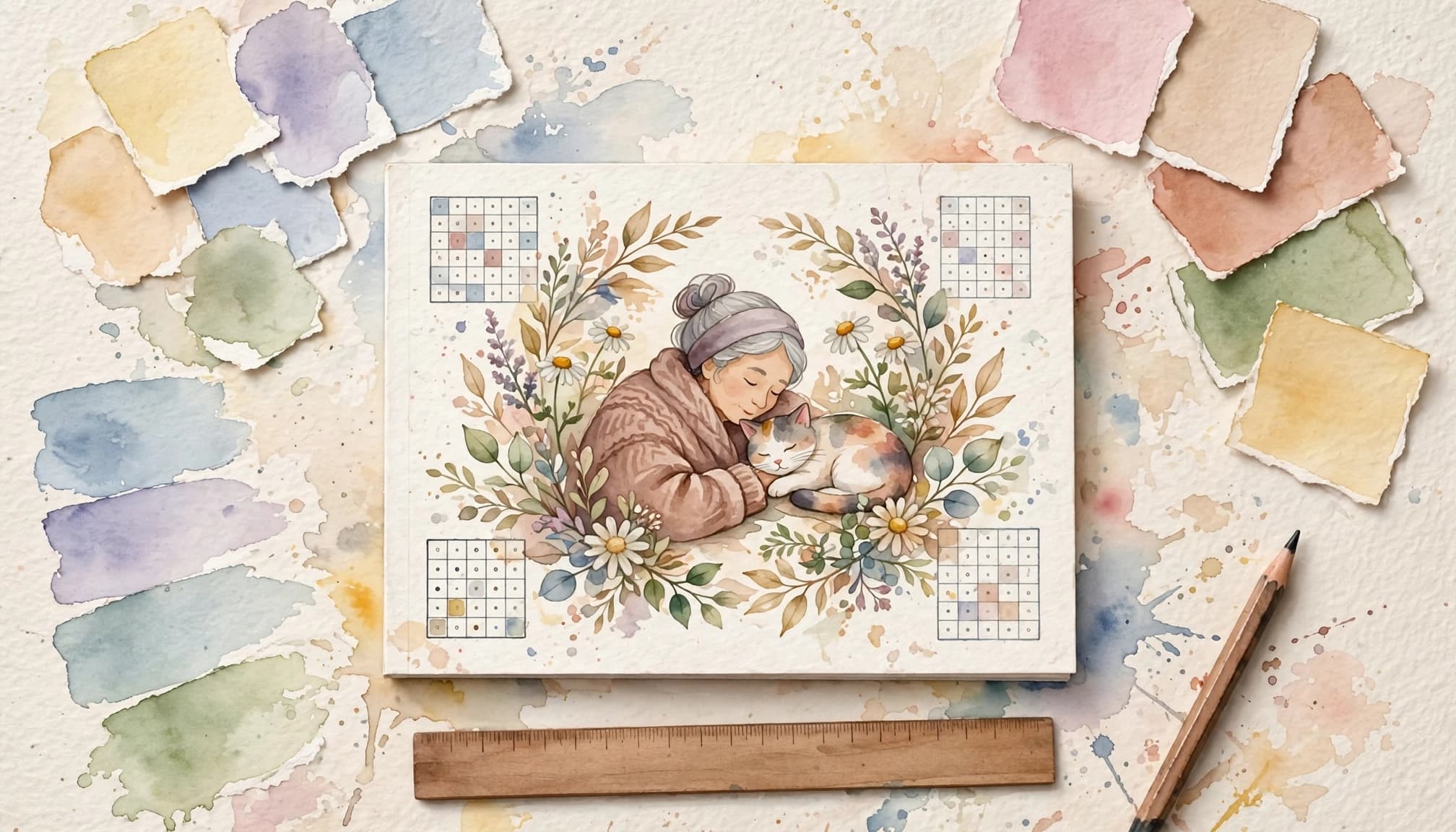
I added the grandmother illustration, title, author name, sample puzzle images, and wording about the 50 easy, large-print puzzles.
The template showed the front, back, spine, trim areas, and barcode space. I used Canva’s rulers and guides to keep track of those boundaries. Amazon’s paperback cover instructions explain the cover layout.
Covering the pink template markings took some fiddling. I eventually used a colored rectangle, matched its shade with the color picker, and positioned it behind the design.
For the back-cover blurb, I asked ChatGPT for an Amazon description, then requested a shorter version. It described the contents, the brain-activity theme, and the book as a gift for grandma or yourself.
5. Fill in the KDP form
Enter the paperback details
Here is the link to where you must fill in the form.
KDP offered Kindle, paperback, and hardcover. I chose paperback because that was the format I’d sized the cover for. I considered Kindle, but this was a book people would write in.
I entered “Grandma’s Sudoku Book” as the title, with the subtitle “Keep your gray matter ticking over with these cute puzzles.”
I added my name as the author, left contributors blank, and used the longer ChatGPT description for the listing. I also started setting up a puzzle series.
In the audience fields, I selected no sexually explicit content, entered eight as the minimum reading age, and left the maximum unset.
Choose keywords and categories
For keywords, I entered phrases including “Sudoku puzzles,” “Sudoku large print,” “Sudoku for seniors,” and “easy Sudoku.” I also used wording around brain activity, cognition, and short-term memory.
Finding the category took a search. I eventually selected Sudoku within Puzzles & Games under Humor & Entertainment. I also added Memory Improvement under Self-Help.
One correction mattered here: this wasn’t a low-content book. I selected large print without selecting low content.
Set the printing options
On the next page, I requested and assigned a free KDP ISBN. I selected black-and-white printing on white paper, an 8.5 x 11-inch trim size, and no bleed.
I initially had the wrong trim size selected and corrected it before continuing.
Although I’d used colored images while designing, I chose a black-and-white interior. I hadn’t tried those images that way before, so I was interested to see how they’d turn out.
6. Preview and check the files
Upload print-quality PDFs
I downloaded the finished Canva interior as a print-quality PDF and uploaded it as the manuscript. I did the same for the separate cover file.
There was a bit of downloading, checking, and downloading again here. I wanted the printing version rather than a file intended for digital viewing.
The ruler guides I’d used while designing weren’t part of the exported artwork.
I also completed KDP’s AI-content questions to reflect the ChatGPT text and generated images I’d used. There were no translations.
Fix the pages flagged in the preview
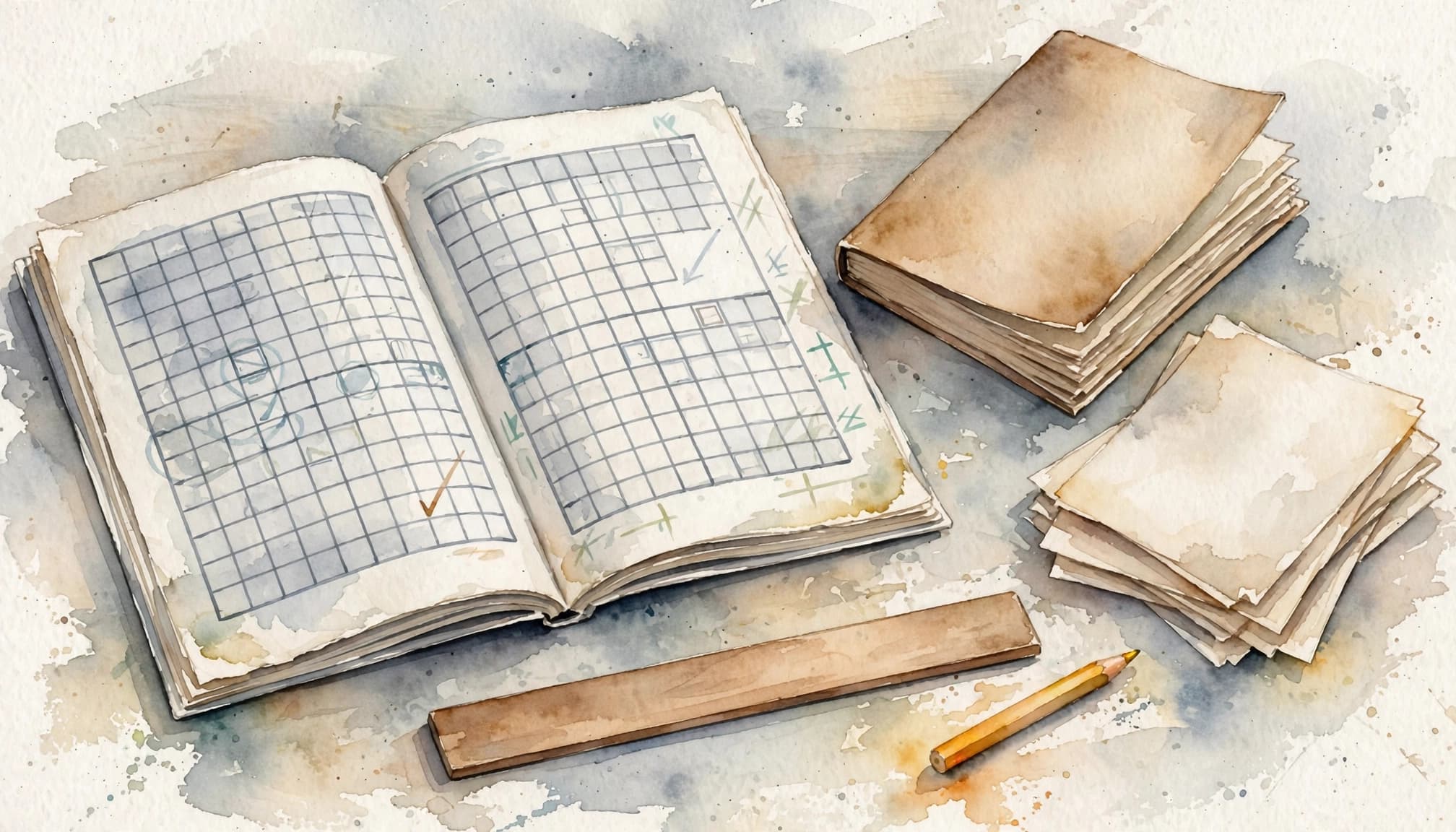
The first KDP preview flagged errors on pages 1, 3, 16, and 34. Some content extended too far toward or beyond the allowed page area.
I went back into Canva and adjusted those pages. One element needed to be smaller. Another needed removing and rebuilding because an image extended farther than I’d realized. On the puzzle pages, I moved the content farther inside the margins.
After uploading the revised file, the quality check passed. That was a relief! I approved the preview and checked the trim size, no-bleed setting, manuscript, and cover.
KDP showed a printing cost of $2.84 for this book. I kept that figure handy before moving on to pricing.
7. Research the price and publish
Compare books with a similar puzzle count
I looked on Amazon.com for books offering 50 puzzles. One was $7.49, and another beginner Sudoku book was $7.99.
I’d initially considered $17.99, but after those comparisons I settled on $7.99. I wanted the price to be comparable with other books offering the same number of puzzles.
Amazon.com was the primary marketplace. Once I entered the price, KDP calculated prices for the other marketplaces and displayed the minimum and maximum prices.
The $2.84 printing cost was part of that pricing decision. I wanted the book to sell, so I wasn’t choosing a price without looking at what else was available.
Submit the paperback for review
With the pricing saved, I clicked “Publish Your Paperback Book.” KDP confirmed the submission and said publication could take up to 72 hours.
The confirmation also said the book would be checked and that I wouldn’t be able to make changes during that review.
KDP offered the option to create a Kindle edition afterward, but I closed that prompt. The paperback was the version I’d completed.
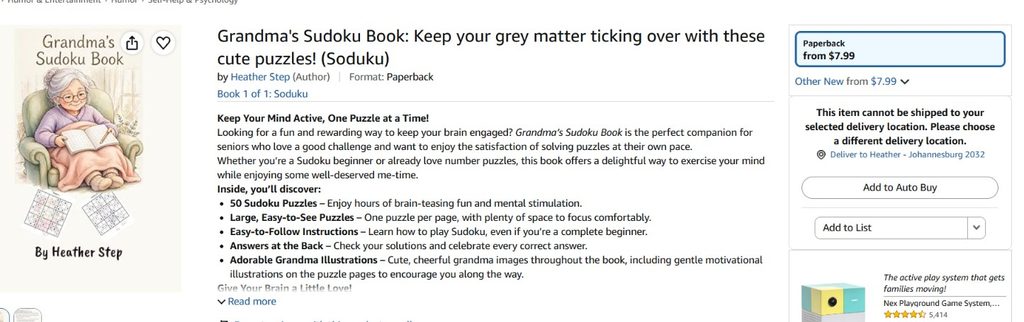
Later, I received the email I’d been waiting for: the paperback had been published. I opened the listing, and there was “Grandma’s Sudoku Book.” Yay, we’d done it!
Frequently Asked Questions
Is the OTT puzzle generator an online tool?
No. It opens in Chrome from a local file and can be used offline.
What does the Sudoku generator include in the interior?
The generated PDF can include a title page, instructions, puzzles, an answer key, and page numbers. You can choose the difficulty, puzzle count, trim size, and whether to put one or two puzzles on each page.
Why does the cover need the final page count?
The cover dimensions depend on the book’s page count as well as its trim size. Use KDP’s cover calculator after the interior is complete so the cover template fits the finished book.
What should I check in the KDP preview?
Review any pages KDP flags and move or resize content that reaches too close to the page edge. Before approving the preview, check the trim size, bleed setting, manuscript, and cover.
The puzzles took minutes; the finishing took longer
The OTT puzzle generator gave me the basic interior in a few minutes. Most of my time went into the finishing details: faded grandma pictures, spelling corrections, the cover, and the pages KDP asked me to adjust.
Digital activities are separate options, not features of the printed Sudoku book, the OTT generator, or KDP. Readers can play online, try a crossword, or use a jigsaw puzzle maker to turn a photo into a picture activity with virtual puzzle pieces. For a digital group activity, check whether the platform supports players, contest mode, a way to share the activity, embed code, and analytics. Check how players join before choosing a platform.
By the end, those 50 generated puzzles were part of a published paperback. It took more steps than clicking “Make my PDF,” but it was lovely to see the finished book on Amazon.